Crash Course on Using Mentimeter to Engage Students

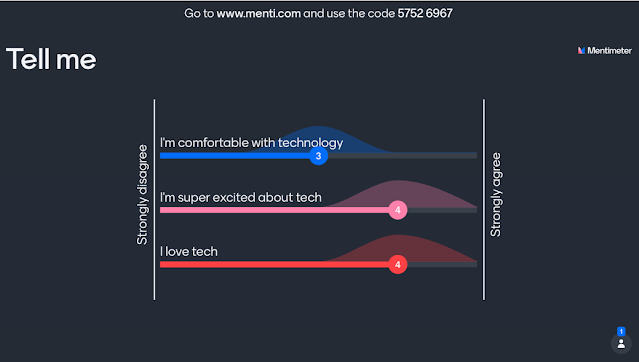
 There are so many cool educational technology tools to choose from! Mentimeter is quickly becoming one of my favorites because I can quickly engage large audiences with various free tools and features, such as quizzes, word cloud generators, rating scales, etc.


If you are just learning Mentimeter, the free version will give you all of the bells and whistles you need to create a great presentation! When you are ready to take it a step further, there are various paid options to choose from. 


The following video will show you how to use the free version of Mentimeter! 


Quickly Summarize and Increase Accessibility with Smmry and Lexend

Reading comprehension can be difficult for students of all ages. Smmry is a tool that can be used to support students who may need a simplified summary to support their learning. It can also be used to make the research process more efficient. 

How Does It Work? 

Smmry reduces the text to the most important sentences by looking for keywords and phrases, then removing unnecessary transition phrases, clauses, and examples. How does it work? 

First, install the Bookmark widget on Chrome or visit the Smmry website.

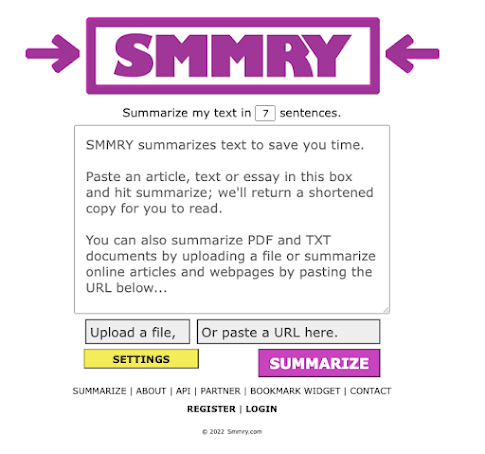
Next, paste your content in the text box, upload a file, or paste the URL of an article into Smmry. You can choose how many sentences you would like to summarize the text. Smmry uses 7 sentences by default; however, you can change this number. 


Finally, choose "Summary" when you are ready, and Smmry will automatically summarize your article. 


BONUS IDEA

I love how I can use Smmry to provide students with additional support for reading a text. I like to provide students with access to the main article and an audio version of the article; however, there are some things I could do to make this even more accessible to my students. 

First, I could copy and paste the text into a Google Doc. Then I could change the font to Lexend Font, which is a great font for reducing barriers and increasing access to the text. 

Next, I could add hyperlinks to key words and terms that students may or may not understand. 

Finally, I could add a YouTube video to provide a visual example for students who may struggle with understanding the background and context of World War 2. Did you know that you can paste a YouTube link and press tab to automatically create a Smart Chip? This is a great way of helping students identify your video link. 


Map Skills Made Easy with MapPuzzle

Cartography, or the ability to identify specific states, countries, and regions on a map, is an important part of learning; however, many of our students struggle with this important skill. There are a variety of reasons for this. One of the most common learning barriers is that student differ in how they comprehend and perceive information. In other words, they need options for representing material in a way that works best for them.

Remember When You Were In School? 

How did you learn to identify the location of specific states and countries on a map when you were in school? If you were like me, your teacher probably handed out a worksheet and colored pencils and asked you annotate and color each land portion. 

This one-size-fits-all solution may have worked for my classmates, but I struggled with this particular strategy. For some reason, it did not "click" like my teacher had anticipated. I prefer more hands-on learning opportunities; however, that was not part of the curriculum. 

MapPuzzle

I recently came across a simple tool called MapPuzzle, which would have been a helpful tool for learning about the different states and countries we discussed in history class. This drag-and-drop tool provides a digital option for students to master their cartography skills inside and outside of class. 

Why do I like this tool? 

  • MapPuzzle is accessible to students of all abilities. What if a student cannot access paper and pencil? MapPuzzle provides an electronic option without having to recreate the wheel. Its drag-and-drop interface makes it easy to use on tablets, Chromebooks, laptops, and other devices. 


  • It provides scaffolds and supports to help aid students with identifying specific regions. For example, each state, province, or country is listed and contains a corresponding shape to help students identify the land portion. This visual prompt may be helpful for some students, while others may not need it at all. 
  • MapPuzzle has different maps students can use to learn about the world around them. 


  • It takes a gamified approach to learning! MapPuzzle keeps track of the amount of time it takes for a student to solve a puzzle, which is a great tangible way of measuring growth and progress.  

Conclusion

Providing Multiple Means of Representation is an essential part of creating an accessible learning experience, as we help students understand "what" something is. The more options we can provide students with using different mediums and resources, the more successful we can help them be! 


Use Tiny Wow to Convert and Customize PDF's, Images, and Videos

Tiny Wow is a free website you can use to quickly convert and customize files, images, and videos into the formats you need. 

For instance, PDF's are a very common file type in education because they provide a convenient format that is accessible on multiple devices and screen readers. However, educators often find themselves frustrated trying to customize PDFs to their needs. 


Tiny Wow provides you with tools for quickly creating, editing, and manipulating PDF files to meet your students' needs!

Have you ever tried to share a JPEG image; however, it appears in HEIC format instead? You can use Tiny Wow to change the format of your picture! Videos can be converted as well!

How Does It Work? 

Tiny Wow is free and simple!

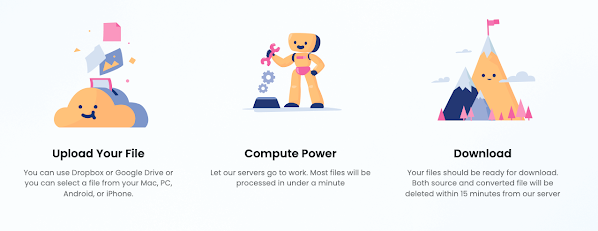
1. Upload your file to Tiny Wow and choose your format

2. Tiny Wow will convert your file into the correct format

3. Download your file! 


Two Google Docs Tricks for Providing Students with Templates and Graphic Organizers

If you are like me, you want to provide your students with the best tools, templates, and resources for completing assignments. I often attach these resources to Google Classroom; however, this can become very cumbersome if I have more than three links. 

One strategy I found helpful is embedding templates and graphic organizers into my instructions in Google Docs. Instead of having students make their own copies, I have used the following tricks to "force a copy" or show a "preview" of the template. Then students can choose to use or not use the templates without remembering to visit File > Make a Copy. 

How to Force a Copy or Create a Template Preview

How does it work? Check out my video


The Key to Choice? Offer Flexibility in the Product or Process

Teachers often ask me, "How can I infuse autonomy and choice into learning?" It's a great question; the key is understanding the power of choice. Choice is a powerful tool in creating learner engagement; however, the type of choice matters greatly. 

It's NOT the Choice, But the Type of Choice That Matters

Katz and Assor (2006) stated that it's not the choice but the type of choice that matters. They argued there are three essential elements of choice: 

  • Autonomy - Do students understand the relevance and meaning of the task?
  • Competence - Are students appropriately challenged, and can they master the task?
  • Connectedness - Do students feel a sense of belonging and accomplishment?

We, as teachers, sometimes struggle with providing our students with choices. There have been times when I have felt guilty and had to give myself permission to give students choice. There have been other times when I was frustrated by the lack of flexibility I thought I had. 

We Have a Choice

When you think about it, we all have a choice in everything we do. For example, I was watching an episode of COPS the other night. A police officer arrived at the scene of a domestic dispute between a husband and wife. The officer decided that it was best if the couple separated for the evening and asked the husband if he was willing to leave for the evening. 

I was taken aback when the husband replied, "no." Without a second thought, the officer replied, "that's your right." In other words, we have a choice in almost everything we do. In this particular situation, the man did not take the officer's advice. 

I know it might sound silly, but it provided me with a moment of clarity. We all have choices in everything we do. We can choose to obey or disobey the speed limit. We can choose to eat healthy or unhealthy. We can choose to show up to work or call off. 

Flexibility in the Product of Process 

What about providing autonomy and choice in the classroom? How can we provide students with choice? I believe there are two different ways to provide students with a choice: we can provide students with flexibility in the product or process of learning. 


Flexibility in the Product
is one of the most common strategies for offering students choice. In other words, students may have flexible options for what is learned, produced, or assessed. For example, what if your learning goal was to have students demonstrate their understanding of the causes of the American Revolutionary War? You may provide students with several structured options for demonstrating their knowledge, such as creating an essay, slideshow, video, or podcast. 

Flexibility in the Process is a helpful strategy when you feel that you don't have much choice. In other words, students may have flexible options for how something is learned or produced. For example, let's say you don't have much flexibility for an essay assignment. Your learning goal states that all students will construct an essay on the causes of the American Revolutionary War. 

How can you provide students with a choice? You might give students options for brainstorming, such as using post-it notes or a graphic organizer. You might give students options for how they construct their first draft, such as using Google Docs, the voice typing feature in Google Docs, or writing the essay by hand. You might provide students with options for editing their draft, such as Grammarly, using a peer, or using a checklist. 

Conclusion

Choice is a powerful strategy for increasing student engagement; however, it can be overwhelming to do. We might be pressured by deadlines, goals, standardized testing, and curriculum pacing. We might be limited on time, ideas, or resources. However, I encourage you to look for one lesson where you can infuse choice and see the possibilities! 


Creating Engaging Google Docs Activities with Dropdown Menus and Emoji Reactions

Have you seen some of the new features in Google Docs lately? I have seen a lot of ideas swirling around on social media about using the Dropdown menu and Emoji Reactions features on Google Docs. One of my favorites is a Cloze Reading activity by Eric Curts. If you haven't seen this, you should totally check it out! 

If you are not familiar with these features, here is a brief overview. 

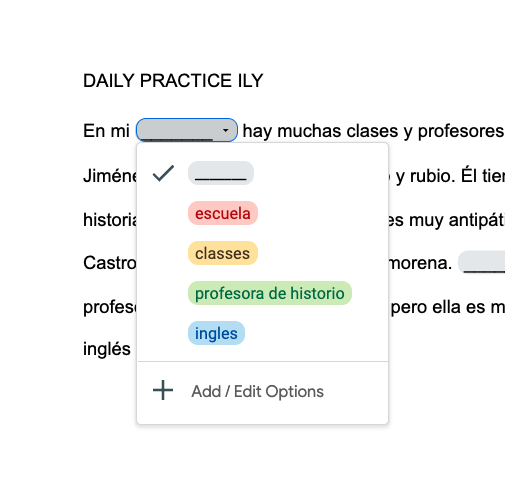
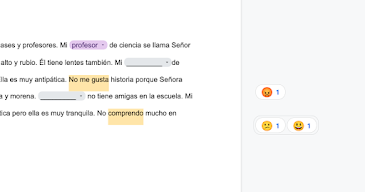
  • The Dropdown feature is a great way of providing students with scaffolds and support for correct terms, numbers, symbols, etc. I decided to take the plunge and see how this could be applied in the foreign language (or any) classroom. Here is an example of this in action: 

  • The Emoji Reactions feature is a great way for checking for understanding! Emojis could be used to demonstrate understanding of a term, analyze the emotional state of a character, or summarize a paragraph. The best part is that this feature has a collaborative component. In other words, you could ask students to work in groups and have each member add their own Emoji reaction to


I thought about how I could combine both of these features into an engaging and rigorous activity for a colleague's Spanish class.  Check out my video below for how I did it: 


Matt Bergman (2022)


New Learn Lead Grow Home!

Hello readers! Happy New Year! It’s hard to believe that 15 years have passed since I launched my Learn Lead Grow blog. As we step into a n...