It's that time of year! Summer is almost here and many of us are starting to wrap up the school year. If you are a Google Classroom user, don't forget about archiving your classes!
There are several other helpful features that you might want to be aware of, such as accessing your archived classes, permanently deleting your classes, and making a copy for next school year.
Check out this helpful video to get you started!


Take Google Slides to the Next Level with Peardeck
Peardeck has been around for a while, but I have to admit that I have recently become fascinated with this awesome tool. If you are not familiar with it, Peardeck allows you to create interactive and dynamic presentations using Google Slides.
If you are a NearPod user, then you might be familiar with self-paced and interactive presentations. Peardeck is similar and has some really helpful features!


If you are a NearPod user, then you might be familiar with self-paced and interactive presentations. Peardeck is similar and has some really helpful features!
- Google Slides Add-On - visit Google Slides and install the Peardeck Add-On so that you can create interactive presentations. You can use existing Google Slides presentations so that you don't have to reinvent the wheel! Just use the Peardeck Add-On to make your presentation interactive.

- Make interactive slides at the beginning, during, and end of the lesson. There is a free and paid version, which gives you several different options to create interactive slides! Questions can be customized to the needs of your students and you can quickly receive feedback on student responses!

- Present your lesson and have students access on a variety of devices. Much like Kahoot and Nearpod, students can access your Peardeck through a link and code. Presentations can be teacher-led or student-paced (even if you use the free version!).
Use the Drop-Down Menu Option in Google Sheet to Create Self-Grading Rubric
Have you ever just wanted to create a Google Sheet with a dropdown menu of options? There are a variety of possibilities with this feature.
Several years ago, I had the idea of having my students grade me at the end of the grading quarter. I put together a rubric for my students to complete. To make the process easier, I could have utilized a drop-down menu to quickly tally up points. Here's how it would work? Check out my quick video!
Several years ago, I had the idea of having my students grade me at the end of the grading quarter. I put together a rubric for my students to complete. To make the process easier, I could have utilized a drop-down menu to quickly tally up points. Here's how it would work? Check out my quick video!
4 Tips for Using Backchannels in Class through Yo Teach!
Backchanneling can be a helpful tool in the classroom when used effectively. For instance, if you are having your students watch a video in class, a back channel might be a helpful platform to ask questions, post observations, etc. Perhaps you have a blended classroom and want to use a backchannel as a forum to ask questions or engage in online discussion.
 Yo Teach!
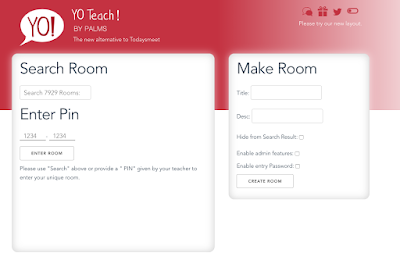
I recently came across a backchannel site called Yo Teach! With the demise of Today's Meet, I have been searching for a viable alternative. This free tool helps you easily create an online chat forum, as well as share with students via a link or QR code.
It is easy to create and takes less than 5 minutes to set-up and share. Plus, there is no account that is needed!
I like the fact that students can share their thoughts in multiple ways, such as through text, a drawing, or upload a picture. Providing students with multiple avenues for participating helps increase engagement in the lesson. Not all students learn the same way - so why should we expect them to backchannel the same way?
4 Tips for Using Backchanneling in Class
Regardless of your strategy or purpose, it is important to consider a few things:
 Yo Teach!
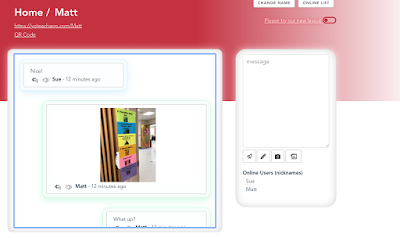
I recently came across a backchannel site called Yo Teach! With the demise of Today's Meet, I have been searching for a viable alternative. This free tool helps you easily create an online chat forum, as well as share with students via a link or QR code.
It is easy to create and takes less than 5 minutes to set-up and share. Plus, there is no account that is needed!
I like the fact that students can share their thoughts in multiple ways, such as through text, a drawing, or upload a picture. Providing students with multiple avenues for participating helps increase engagement in the lesson. Not all students learn the same way - so why should we expect them to backchannel the same way?
4 Tips for Using Backchanneling in Class
Regardless of your strategy or purpose, it is important to consider a few things:

- Establish expectations with students. What does acceptable dialog look like? Realize that students are going to do and say things that are inappropriate at times. Does this mean you abort the technology or use it as a teachable moment?
- What is the purpose of establishing a backchannel? Is it just to have a "cool" new activity or will it enhance discussion? Knowing your purpose helps provide direction.
- Know your audience. If you are working with a bunch of 1st graders, is this the most appropriate tool for conversation? What is the maturity level of your students? What online experiences have they had in the past? If they haven't had much experience, how can you help them learn how to participate in an online environment.
- Establish a framework. Use a framework to guide your student's through the online discussion. Will they pose questions or share observations? Will they share 2 truths and a lie about the video? Are you using it as a 3-2-1 activity at the end of class? Structure helps keep the majority of students on task because they know the purpose. Without a purpose, students will often create their own purpose - even if it is unproductive.
Using Google Docs to Create a Personalized Learning Profile
Getting to know your students is an important part of building a positive classroom environment, as well as setting the foundation for personalized learning. Whether you are using technology or not, it is important to understand who your students are, their learning preferences, and areas for growth. It may be helpful to develop a learning profile for your students.
Learning Profile
A few months ago, I worked with a school on personalized learning. The school wanted to develop personalized learning profiles for students, based on three different areas:
Learning Profile
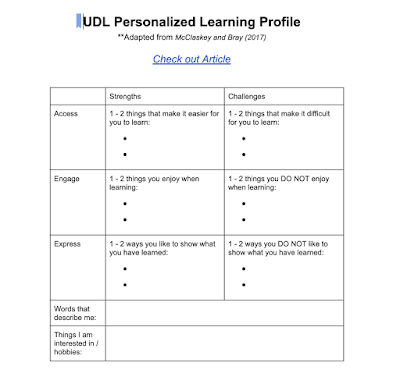
A few months ago, I worked with a school on personalized learning. The school wanted to develop personalized learning profiles for students, based on three different areas:

- Access - which resources provided the best options for representing content in different ways?
- Engagement - what best-motivated students? How could we build a dynamic classroom ecosystem that provided voice and choice?
- Expression - which tools helped students best demonstrate their knowledge?
Conclusion
We developed a Google Doc, which students were able to continually add to throughout the course of the year. The questions provided us with their preferences, a better understanding of their personality, and areas of growth.
Want your very own copy? Click on this link.
Cluster Chrome Extension: A More Efficient to Keep Your Browsing Organized
Are you one of those people who have dozens of tabs open all at the same time? If you are like me, you might need a way to keep yourself organized. Cluster is a window and tab manager, which will save you time and energy while browsing in Chrome.
Here are three features that I like about this Chrome Extension:
1 - Window Manager - this is a helpful tool if you want to keep yourself organized by using multiple windows, such as commonly used websites for school. You can use the windows manager for different things.
For example, you can create a window of commonly used websites like a grading system, attendance system, and Google. Y

2 - Save Window - let's say that you have a bunch of tabs open, which are related to your class. Choose the Save Window feature and you can save all open tabs on your screen. Use the Open Window feature to open up your saved tabs!

3 - Suspend or Unsuspend Tabs - Too many tabs open taking up too much memory? You can suspend tabs from loading and taking up too much memory or WiFi. When you want to load it back up, choose unsuspend.
Here are three features that I like about this Chrome Extension:
1 - Window Manager - this is a helpful tool if you want to keep yourself organized by using multiple windows, such as commonly used websites for school. You can use the windows manager for different things.
For example, you can create a window of commonly used websites like a grading system, attendance system, and Google. Y

2 - Save Window - let's say that you have a bunch of tabs open, which are related to your class. Choose the Save Window feature and you can save all open tabs on your screen. Use the Open Window feature to open up your saved tabs!
3 - Suspend or Unsuspend Tabs - Too many tabs open taking up too much memory? You can suspend tabs from loading and taking up too much memory or WiFi. When you want to load it back up, choose unsuspend.
ClassroomScreen: All-in-One Classroom Management Tools
Classroom management can be difficult in the digital age. There are so many tools and resources to keep your students on task, manage student behavior, and keep yourself organized. It can be frustrating to keep it all straight. What if there was a tool to keep everything organized and together?
A colleague of mine (thanks Courtney!) shared an awesome resource called ClassroomScreen with me! This website provides you with a website dashboard of tools that can help you stay organized, increase engagement and provide noise control.
Here's what it does:


A colleague of mine (thanks Courtney!) shared an awesome resource called ClassroomScreen with me! This website provides you with a website dashboard of tools that can help you stay organized, increase engagement and provide noise control.
Here's what it does:
- Random Name Generator - need a tool to randomly call on students? Click "Random Name Generator" and add student name. Then you are all set!

- Sound Level - want an easy tool to provide noise control? The sound level feature is extremely helpful and easy to use. Just give the site permission to use your computer's microphone.

- QR Code - need a quick way to share resources with your students? Use the QR Code tool to generate a QR code to quickly share resources with students on their mobile devices.

- Communication Tools - need to share a quick drawing, provide text instructions, or communicate with students? There are a variety of tools to help you do exactly that. I love the work symbols feature, which provides you with quick icons to communicate how you want students to work (whisper, work together, etc.). There is even a helpful stoplight feature too!

- Clock and Timer - Need to share the time or need a timer? Use the clock and timer features to keep your students on task and on time.

Subscribe to:
Posts (Atom)
New Learn Lead Grow Home!
Hello readers! Happy New Year! It’s hard to believe that 15 years have passed since I launched my Learn Lead Grow blog. As we step into a n...

-
 Hello readers! Happy New Year! It’s hard to believe that 15 years have passed since I launched my Learn Lead Grow blog. As we step into a n...
-
Universal Design for Learning (UDL) is a key component of Tier 1 instruction; however, it’s essential to understand that UDL is a framework ...
-
As our world continues to advance in its application of AI, it is important to educate our students and teachers on the potential of generat...

