Showing posts with label Macbook. Show all posts

14 Things Siri Can Do

Siri is a powerful tool that often gets overlooked; however, it has the power to help you stay organized, increase efficiency, quickly find information, and perform tasks with very little effort. Just when you learn one trick, there are new things added each day!

Here are 14 things that you can do with Siri to increase your productivity inside and outside of the classroom:


Click here to download the PDF version of the 14 Things Siri Can Do Cheat Sheet.

If you are interested in seeing the full list of Siri commands, here is an excellent article from CNET that has even more!


Video Tutorial on Using Numbers to Create Interactive Worksheets and Timelines

Thanks for the great feedback that I received about one of my latest posts titled More Than a Speadsheet: 3 Ways to Use Numbers in the Classroom. You spoke and I listened!

Here is a video clip describing how to create an interactive worksheet and interactive timeline. Enjoy!


More Than a Spreadsheet: 3 Ways to Use Numbers in the Classroom

I recently sat down to learn about how to use Numbers in student learning. If you are not familiar with Numbers, this is Apple's spreadsheet software, similar to Excel and Google Sheets, which comes with your Macbook or iPad.

Here are three ideas to use Numbers in your classroom.

1. Manipulatives 
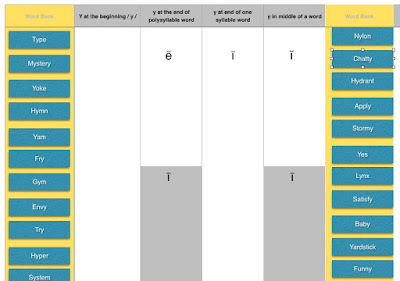
Vocabulary is an important component of any class regardless of your content area. Numbers can be used to create a variety of interactive vocabulary exercises to allow hands-on learners to interact with content.

The activity on the right is something that I developed for a teacher in my school to allow students to drag and drop vocabulary (blue boxes) words into the right positions.


***BONUS IDEA!

Because you can add video clips into your spreadsheet, why not record yourself giving instructions, doing a sample problem, or sharing resources? This helpful strategy provides students with the scaffolds and supports that may be necessary to complete the task successfully. 


2. Create a Timeline
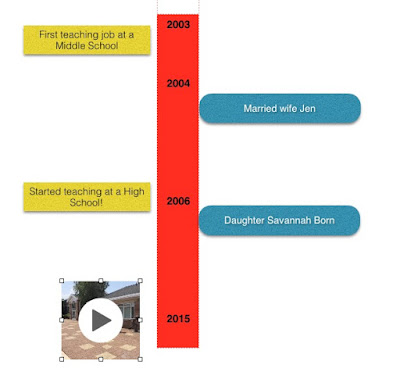
Timelines are useful tools to visualize the order of historical events, understand the parts of a story, or understand a process.

Numbers is a great tool to create an interactive timeline with text boxes, hyperlinks, images, and video files.

As an example, I created a sample timeline of important events in my life.


3.  The Perfect PBL, STEM, or Design Thinking Tool 

PBL, STEM and Design Thinking have become an important part of today's classrooms. Instead of using separate programs to compose your project, Numbers gives you the ability to create, store, and showcase various types of media in one place.

During my time exploring Numbers, I saw an example of how students used an iPad to complete a Circuit Training lesson.  To complete the activity, students were asked to do the following:
  • STEP 1:  Access a Numbers spreadsheet, containing a map and detailed instructions of the circuit tasks they needed to complete. 
  • STEP 2:  Students were asked to use an iPad to record themselves doing each circuit exercise. As they completed each exercise, they were asked to embed the video from their iPad into the spreadsheet. I love the fact that you can watch the video in Numbers! 
  • STEP 3: Students were asked to use an App called Cardiio to analyze their pulse after each activity. Students input the data into Numbers to see the impact of each activity on their body. 
  • STEP 4: Students used Numbers to create a chart to analyze and visualize their data.
  • STEP 5: Students used the "selfie cam" on their iPads to record a video analysis explaining the results. 
Conclusion:

Do you use Numbers? If you are a Mac or iOS user, you may want to seriously consider learning how to use this valuable and under utilized program. Why? This amazing spreadsheet tool can offer so many possibilities and modalities for students to learn more effectively. 


Macbook Problem: Can't See Pictures Sent to You in Messages?

I have noticed that I cannot send or receive pictures in Messages on my Macbook Air since I upgraded to the Yosemite OS several months ago. I was seeing this instead:

I thought that upgrading to El Capitan would potentially take care of the problem. Unfortunately it did not. After doing a little research, I was able to find a solution on Apple's website!

Here's how to fix your problem:

1. Find and open your Library Folder

2. Open your Messages folder.

3. You will see a file named Attachments with 0 bytes. Delete this folder.

4. Create a new folder called Attachments (make sure that this is in your Messages folder)


This will take care of your problem! Now you are able to see pictures in Messages.

November is Click's for a Cause Month!

For the past three years, November has been "Clicks for a Cause" month. Every time that you visit my blog during the month of November, I will contribute a penny towards the medical fund of a child in need. Here are past beneficiaries of this project. 

Addison Mae Jacobs was born on January 13, 2015, 4 weeks premature. She was born at only 6 lbs 5 oz and 17.5 inches long.  On October 27, 2015, she was diagnosed with Shwachman-Diamond Syndrome (SDS), a devastating disease impacting only one in a million children. SDS is a rare autosomal recessive disorder characterized by exocrine pancreatic insufficiency, bone marrow dysfunction, leukemia predisposition, and skeletal abnormalities.

Addison is currently being seen by nine different medical specialists and her family is coordinating her care between Penn State Hershey Medical Center and Children's Hospital of Philadelphia. There are many expensive surgeries, tests, and medical costs in her future.  Due to the costly nature of her care, travel expenditures and having to take significant amounts of time off work, her family has setup a GoFundMe account for Addison, as well as a support page to show updates and her progress.

How Can I Help?

I will be donating a penny for every visit to this blog during the month of November. Are you willing to help too?
  • Visit this blog, pray, or spread the word about Addison! 
  •  Become a Courageous giver and make a flat donation or match my donation  at the end of the month to Addison’s GoFundMe page

New Learn Lead Grow Home!

Hello readers! Happy New Year! It’s hard to believe that 15 years have passed since I launched my Learn Lead Grow blog. As we step into a n...