Building Student Vocabulary

It's inevitable. Students will complete assignments and work ahead of schedule, while others are still struggling to complete an assignment. This is one of the "laws of education." Even when we ask students to complete work for another class or read a book, what do they choose to do? Some choose to use this time ineffectively and inefficiently. Why not use this time as a time for enrichment?


If you are lucky enough to have a few extra computers in your classroom, you may want to use www.vocabulary.com. Your students are given the challenge of answering a variety of multiple choice questions about vocabulary. The questions appear on a note card, giving it a classroom feel. The site has built a database of over 40,000 words and you have options for narrowing your choices down or getting clues. As you compete, you can accumulate points, making it a competition.

If you create a username, you will be able to track your progress and see how your vocabulary develops. What a great way to practice for those darn standardized tests, while your students are waiting to progress.

Let Your Garden Grow Through Answer Garden!


Recently, a graduate student of mine introduced me to a site called Answer Garden, which is an online brainstorming tool. All you need is a question and computers for your students to use to answer! Answer Garden makes it easy to embed on your website or just provide a link for your students to access.

How do you use it?
  1. Visit Answer Garden and click Create Answer Garden
  2. In the Topic section that comes up, type your question. You may want to experiment with the More Options section, where you can add an administrative password or limit the number of answers.
  3. Click CREATE
  4. You will get a preview of your question. You may want to send the link to your students OR embed in your website.
  5. If you want to embed it in your website, simply scroll to the bottom of your page and click SHARE. Once you click SHARE, you will have the html code necessary to embed in your website.
How does this relate to UDL? Quite simply, it provides another means of engagement, by providing options for expression and communication. Students can brainstorm without needing a password or username! All they need is the link!

How could Answer Garden be used in my classroom? This would be an excellent tool to introduce a lesson or check for student understanding at the end of the day. In my UDL class, we used it as a way to check for student understanding. Students were asked to provide another word for UDL. What a great way to brainstorm without wasting paper!

Principle II. Provide Multiple Means of Action and Expression without "Technology"?

Principle II. Provide Multiple Means of Action and Expression

Every time I teach an audience about UDL, I always get the same question, "Do you have to use technology for UDL to work?" My answer is always, "No. It is just a tool in the UDL toolbox." Some of my participants cannot get past that.

Lately I have been thinking about ways to engage students without using technology. Here are some ideas:

1. Corner Quiz Activity

I enjoy giving my students statistics or trivia questions to ponder, during the beginning of a chapter or unit. Sometimes I would hand out a worksheet with questions and other times I would have the kids "shout" out answers on a PowerPoint. I always found something was missing. There were always those "quiet" or "shy" kids that just were not engaged. There were always the kids who just didn't want to "guess" an answer, because they would have to "erase it from their paper."

So I took a chapter out of Kagan and came up with the following idea :
  • I set up my room, so that each corner of the room was labeled with the letter A, B, C, and D.
  • I asked all of my kids to stand up. I explained to them that I would be putting a series of multiple choice questions on my projector (although you don't need this).
  • Students would have to read the question and walk to the corner of the room that contained the answer they agreed with.
At first, my students "followed" each other around the room, but something amazing began to occur. Students began to have fun and started to "take risks." This was a great way of having students interact with one another and explain their reasoning, while still being engaged.

2. Facebook without the Technology?

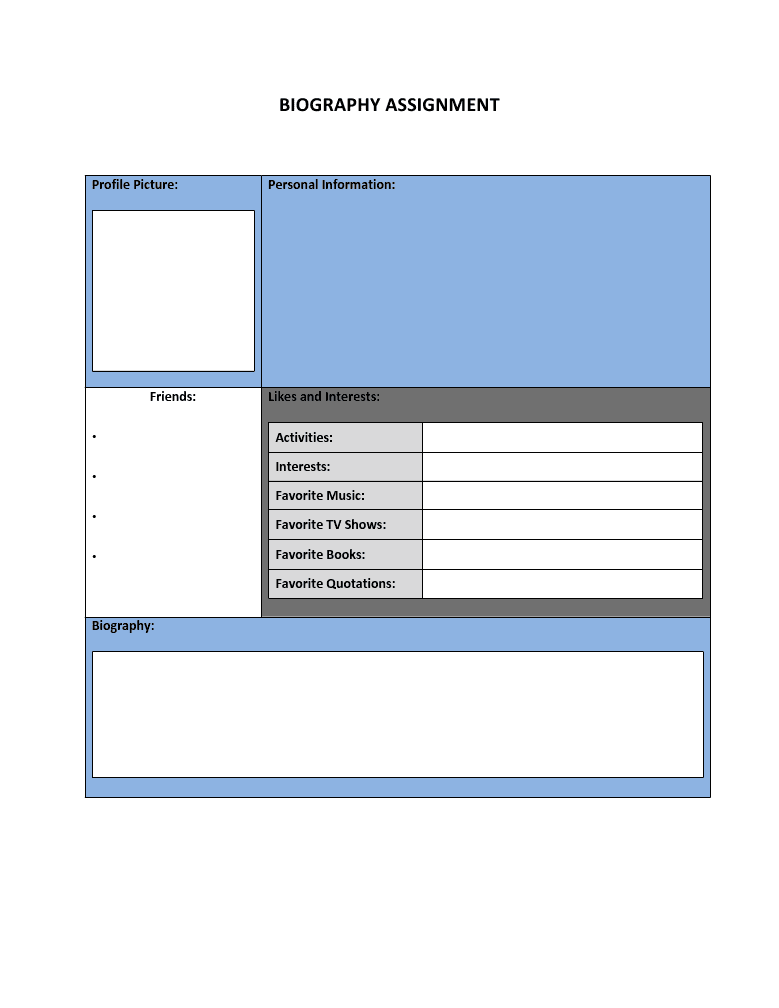
What is the first thing our kids do when they have a spare moment? They are either trying to text or check their Facebook status. Why not buy into their mindset? After being inspired by several teachers around the country, I decided to create a Facebook Profile template in Word for my kids to use for a project. I simply printed it out and gave it to my kids to use with their textbooks.

Students were asked to research a historical figure and fill out the Facebook profile for this person. Students were then asked to present their findings to classmates, which made way for a great discussion.

For a link to this template or more Facebook ideas go to: https://sites.google.com/site/nosmartboard/home/social-networks-as-an-educational-tool

Bot examples were amazing! Quite simply, we created multiple means of expression without the technology, but tapped into the wiring of our student's technological minds.

UDL Principle 2 - Providing Multiple Means of Representation through Google Docs

Google Docs have been around for a long time, but how do they relate to Universal Design for Learning ? Quite simply, they are an excellent way of providing multiple means of representation. Google Presentations are an excellent way to create an interactive note taking experience in your classroom because students are contributing to and interacting with the presentation. All you need is a few laptops for your students, a projector, and a little bit of prep time.

If I am teaching an introduction lesson, I often use a Google Presentation to get my students involved and introduced to the material. I have found that my students are more motivated when they can contribute to the information learned.

Step 1: Prepare the presentation. I organize the "title placeholder" of each slide with the name of the group (group 1, group 2, group 3, etc.). You will also want to have an essential question or questions on the slide, to direct students. I have found that fill in the blank questions work just as well.


Step 2: The KEY to Sharing Your Presentation. This is the most important step! Once you are finished, you will need to give permission for others to see and edit the presentation. This can be accomplished by clicking on the Sharing Settings Icon (lock icon) and choosing Anyone With Link Can Access.


You will also need to select Allow anyone to edit (no sign-in required), which will allow your students to access and edit the presentation without a Google account.


Step 3: Share.
It is important to have a central location to place the link for your students to access. This could take the place of a Wiki, Blog, Website, Email, etc. Without a central location, its very difficult for your students to participate.

Step 4: Time to Present! Break your students into groups of 2 - 3 to "research" answers. After about 10 minutes (depending on questions), its time to present. Have each group nominate a spokesperson to present material. Now you are ready to have your students "teach" the rest of the class. Give a group presentation, where you and the students are presenting material.

Personally, I have found that this activity effectively provides multiple means of representation. Students interact with the materials with technology and becoming "expert learners" with their subject / topic. It is estimated that we remember 90% of what we teach others. What a powerful statistic! They see course materials in a visual format. They "hear" course material through presentations. Why not give it a try?

Providing Multiple Means of Engagement

If you are a teacher in the era of accountability, then you know what pressure feels like. In Pennsylvania, this week has been devoted to our PSSA test for most students in elementary, middle and high school. We are pressured to get students from point A to point B. Many educators feel pressured and feel that creativity has been extinguished from their lesson plans. Yet we can give students opportunities to be creative, by giving opportunities for students to make choices. WE need to get from point A to point B, but how you get there could be a choice. Let's be real, this cannot happen all of the time, but it can help students learn better.

Think about a mall. If you were to enter a mall, you may have a choice, to walk through the automatic doors or manually open a door. You may enter the mall and have a choice, take the steps or use a ramp. As you are walking through the mall, you realize that you want to visit your favorite store on the 2nd floor. You may have a choice: take the escalator or elevator. Our students come to our rooms with different abilities. No two students learn the same way, yet we have to teach with the same standards.

Recently, I designed a project for my kids to design an office space, by creating floor plans, measuring square footage, and measuring dimensions. I gave my kids several options to complete the task: draw by hand, create in Microsoft Word, Paint, or use a new program called Floor Designer.


Floor Designer is a unique program that allows students to design a floor plan, while learning mathematical concepts and taking measurements. What a unique idea or tool to use for a geometry unit! What a great tool to use to problem solve! What a great tool to use for solving a word problem! Floor Designer is free and easy to use. In fact, you can sign in if you have a Gmail, Yahoomail, or Open ID account.

Giving students options may not always work out. For example, students may not have a choice when completing a multiple choice test or creating a written essay. Universal Design for Learning - Principal III emphasizes giving students choices through multiple means of engagement. When students have choices, they tend to learn better.

Multiple Means of Expression through Google

Principle 1 of Universal Design for Learning states that all students need "Multiple Means of Representation" in learning. One emphasis of Principal 1 is providing students with options for perception. To get all students from point A to point B, we may have to offer different options to achieve the same objective. Some students are more visual. Some students are more auditory. Some students are more tactile.

Using the Internet to conduct research is becoming an everyday norm in our classrooms today. Where do most of us turn? Google. Google offers many unique tools to customize the display of information and is very UDL friendly.


  • Reading Levels: For example, if you are simply conducting a search for "Abe Lincoln," use the Advanced Search options to filter results by reading level. Simply choose "Annotate Results by Reading Level" and you will see a breakdown according to reading level.


  • Wonder Wheel and Time Line: For your visual learners, you may want to break things down with the Wonder Wheel or Time Line. Each offer excellent visual alternatives. The Wonder Wheel breaks your search down and offers different alternatives for searching, in a brainstorming web format. The Time Line is exactly what it is...a time line, where search results are organized according to date.

Google According to Reading Level?

Did you realize that Google allows you to search according to reading level? Neither did I. Here is a great link from Tammy's Tech Tip of the Week on how to do so: http://web.me.com/tammy.w/TipOfWeek/TammyWTechTipOfWeek/Entries/2011/1/20_Tip_97_-_Google_Search_by_Reading_Level.html

New Learn Lead Grow Home!

Hello readers! Happy New Year! It’s hard to believe that 15 years have passed since I launched my Learn Lead Grow blog. As we step into a n...