Use Tiny Wow to Convert and Customize PDF's, Images, and Videos

Tiny Wow is a free website you can use to quickly convert and customize files, images, and videos into the formats you need. 

For instance, PDF's are a very common file type in education because they provide a convenient format that is accessible on multiple devices and screen readers. However, educators often find themselves frustrated trying to customize PDFs to their needs. 


Tiny Wow provides you with tools for quickly creating, editing, and manipulating PDF files to meet your students' needs!

Have you ever tried to share a JPEG image; however, it appears in HEIC format instead? You can use Tiny Wow to change the format of your picture! Videos can be converted as well!

How Does It Work? 

Tiny Wow is free and simple!

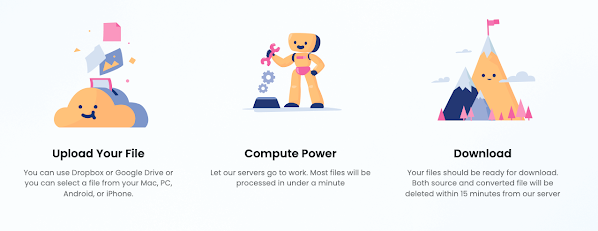
1. Upload your file to Tiny Wow and choose your format

2. Tiny Wow will convert your file into the correct format

3. Download your file! 


Two Google Docs Tricks for Providing Students with Templates and Graphic Organizers

If you are like me, you want to provide your students with the best tools, templates, and resources for completing assignments. I often attach these resources to Google Classroom; however, this can become very cumbersome if I have more than three links. 

One strategy I found helpful is embedding templates and graphic organizers into my instructions in Google Docs. Instead of having students make their own copies, I have used the following tricks to "force a copy" or show a "preview" of the template. Then students can choose to use or not use the templates without remembering to visit File > Make a Copy. 

How to Force a Copy or Create a Template Preview

How does it work? Check out my video


The Key to Choice? Offer Flexibility in the Product or Process

Teachers often ask me, "How can I infuse autonomy and choice into learning?" It's a great question; the key is understanding the power of choice. Choice is a powerful tool in creating learner engagement; however, the type of choice matters greatly. 

It's NOT the Choice, But the Type of Choice That Matters

Katz and Assor (2006) stated that it's not the choice but the type of choice that matters. They argued there are three essential elements of choice: 

  • Autonomy - Do students understand the relevance and meaning of the task?
  • Competence - Are students appropriately challenged, and can they master the task?
  • Connectedness - Do students feel a sense of belonging and accomplishment?

We, as teachers, sometimes struggle with providing our students with choices. There have been times when I have felt guilty and had to give myself permission to give students choice. There have been other times when I was frustrated by the lack of flexibility I thought I had. 

We Have a Choice

When you think about it, we all have a choice in everything we do. For example, I was watching an episode of COPS the other night. A police officer arrived at the scene of a domestic dispute between a husband and wife. The officer decided that it was best if the couple separated for the evening and asked the husband if he was willing to leave for the evening. 

I was taken aback when the husband replied, "no." Without a second thought, the officer replied, "that's your right." In other words, we have a choice in almost everything we do. In this particular situation, the man did not take the officer's advice. 

I know it might sound silly, but it provided me with a moment of clarity. We all have choices in everything we do. We can choose to obey or disobey the speed limit. We can choose to eat healthy or unhealthy. We can choose to show up to work or call off. 

Flexibility in the Product of Process 

What about providing autonomy and choice in the classroom? How can we provide students with choice? I believe there are two different ways to provide students with a choice: we can provide students with flexibility in the product or process of learning. 


Flexibility in the Product
is one of the most common strategies for offering students choice. In other words, students may have flexible options for what is learned, produced, or assessed. For example, what if your learning goal was to have students demonstrate their understanding of the causes of the American Revolutionary War? You may provide students with several structured options for demonstrating their knowledge, such as creating an essay, slideshow, video, or podcast. 

Flexibility in the Process is a helpful strategy when you feel that you don't have much choice. In other words, students may have flexible options for how something is learned or produced. For example, let's say you don't have much flexibility for an essay assignment. Your learning goal states that all students will construct an essay on the causes of the American Revolutionary War. 

How can you provide students with a choice? You might give students options for brainstorming, such as using post-it notes or a graphic organizer. You might give students options for how they construct their first draft, such as using Google Docs, the voice typing feature in Google Docs, or writing the essay by hand. You might provide students with options for editing their draft, such as Grammarly, using a peer, or using a checklist. 

Conclusion

Choice is a powerful strategy for increasing student engagement; however, it can be overwhelming to do. We might be pressured by deadlines, goals, standardized testing, and curriculum pacing. We might be limited on time, ideas, or resources. However, I encourage you to look for one lesson where you can infuse choice and see the possibilities! 


Creating Engaging Google Docs Activities with Dropdown Menus and Emoji Reactions

Have you seen some of the new features in Google Docs lately? I have seen a lot of ideas swirling around on social media about using the Dropdown menu and Emoji Reactions features on Google Docs. One of my favorites is a Cloze Reading activity by Eric Curts. If you haven't seen this, you should totally check it out! 

If you are not familiar with these features, here is a brief overview. 

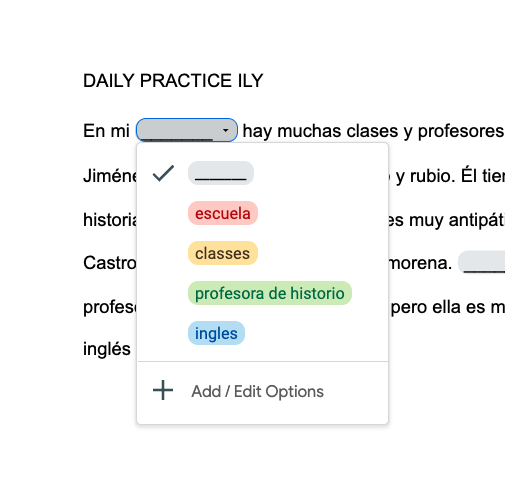
  • The Dropdown feature is a great way of providing students with scaffolds and support for correct terms, numbers, symbols, etc. I decided to take the plunge and see how this could be applied in the foreign language (or any) classroom. Here is an example of this in action: 

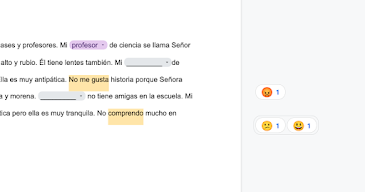
  • The Emoji Reactions feature is a great way for checking for understanding! Emojis could be used to demonstrate understanding of a term, analyze the emotional state of a character, or summarize a paragraph. The best part is that this feature has a collaborative component. In other words, you could ask students to work in groups and have each member add their own Emoji reaction to


I thought about how I could combine both of these features into an engaging and rigorous activity for a colleague's Spanish class.  Check out my video below for how I did it: 


Matt Bergman (2022)


Amazing Google Lens Trick! Copy Printed Text with Your Phone and Paste in Google Docs on Another Device

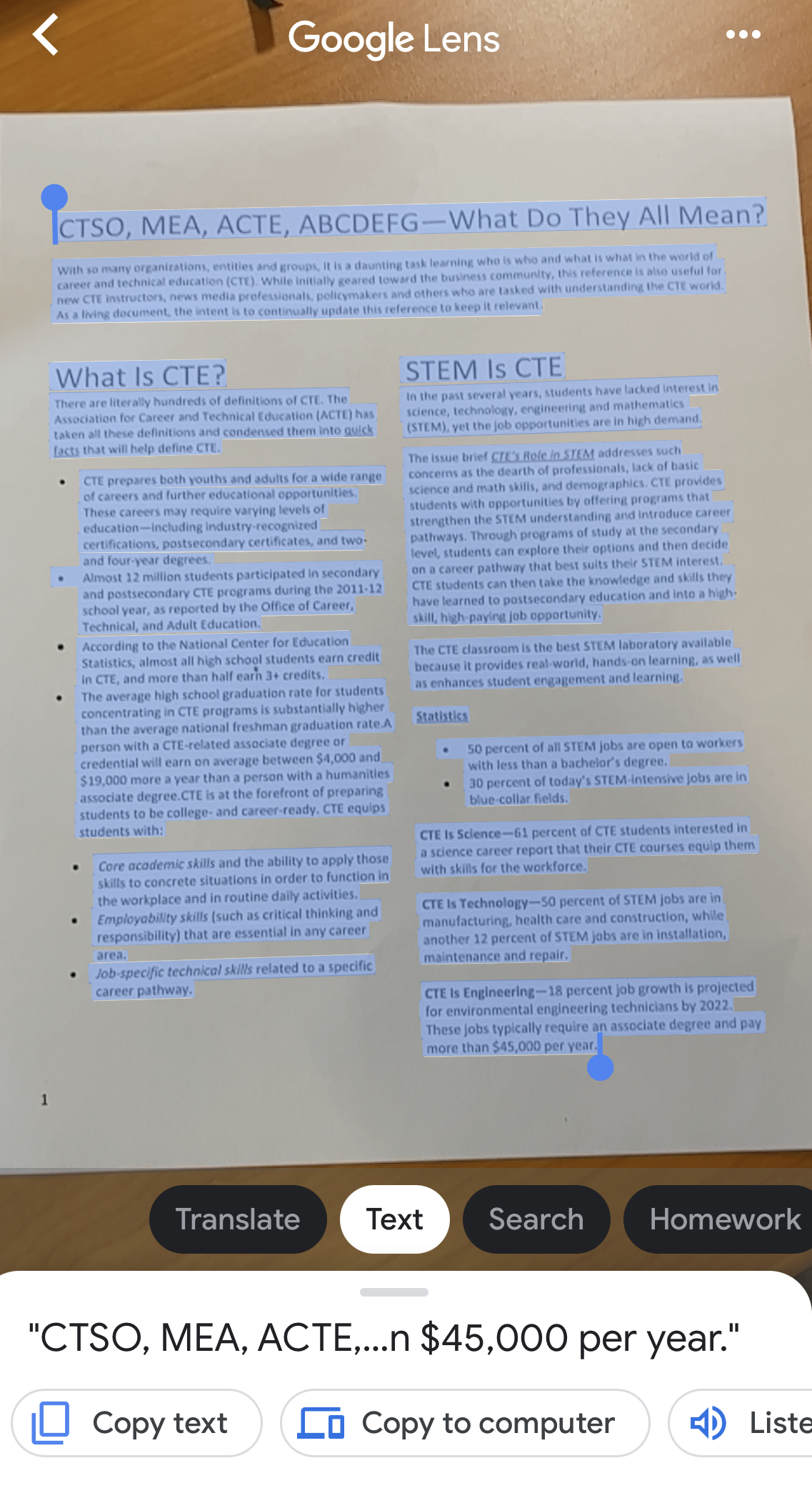
Did you know that you can use the Google Search App on your phone to scan, copy, and even translate a printed text on another device? You can literally scan a printed text from your phone and send it to your laptop with a few taps. This is a game-changer if you want to Universally Design your classroom and make printed text more accessible to ALL students!  

Printed Text Limitations

We know that learners differ in how they interact and perceive different media and printed text does have several limitations. First, you are limited in how you can manipulate and interact with printed text. For instance, you cannot change the font size or style. Secondly, hyperlinks to additional resources and tools cannot be embedded in printed documents. Finally, printed text does not have built-in speech-to-text tools. 


Educators are sometimes limited by budgets and resources, creating barriers to creating accessible learning environments. This simple trick is free and how students learn in your classroom! 

How Does It Work? 


Here is a brief tutorial on copying text, pasting it into Google Docs, and changing the font to Lexend.


Extreme Makeover UDL Edition! Making a Self-Pace Google Slides Activity Accessible and Even Better!

I recently saw an awesome self-paced activity using Google Slides by the Sprinktop Teacher! It was engaging and well designed. As someone constantly thinking about the importance of design and accessibility, I thought..."how could I make this amazing activity even more amazing and accessible for ALL students?" 

UDL Makeover: Making An Amazing Activity Even More Amazing and Accessible 

Check out my video below to learn:

1. How to create your own self-directed slides in Google Slides

2. How to make your activity accessible

  • Making your fonts more accessible with Lexend
  • Publishing your presentation and providing a QR-code generated from Chrome


 Conclusion

When we identify high-probability barriers to accessing learning activities and design with accessible options in mind, we can create highly engaging learning activities for all students. Check out more about the UDL framework and Matt's Lesson Planning with a POP framework below:


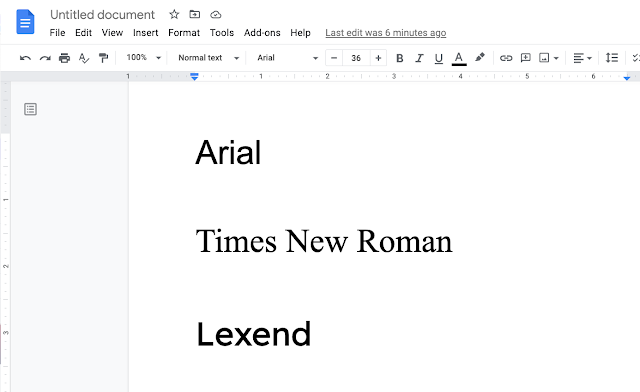
Making Reading Accessible Through Lexend

Researchers have found that reading fluency is one of the factors that distinguishes good readers from poor readers; however, many of our students and even adults struggle with reading throughout their careers. In fact, according to the US Department of Education, over 70% of the population struggles with some form of reading difficulty. 

What if the problem was more than fluency and literacy? 

In 2001, Dr. Bonnie Shaver-Troup discovered and designed a new font called Lexend to reduce visual stress and improve reading performance for struggling readers and those with dyslexia.


Shaver-Troup found that the Lexend not only makes reading more for struggling readers and those with dyslexia, it actually benefits ALL readers. Researchers have found some powerful evidence for Lexend:

  • Reading fluency is calculated to find the correct number of words spoken per minute. Researchers discovered that 90% of readers had better fluency scores with Lexend font than Times New Roman. 
  • Reading fluency performance improved by 19.8% for readers using Lexend versus Times New Roman

Lexend is an example of how design is an important aspect of teaching and learning. We can make reading assignments more accessible for our students by changing the font!

How Can I Use Lexend in Chrome and G Suite?  

Check out the following website for Lexend to find out more information. 

If you would like to add Lexend to Google Chrome, I recommend checking out the following Chrome Extensions HelperBird and ReaderMode. 

Adding Lexend to G Suite (Docs, Slides, Sheets, etc.) is very easy! Check out the following video on how to do it: 


New Learn Lead Grow Home!

Hello readers! Happy New Year! It’s hard to believe that 15 years have passed since I launched my Learn Lead Grow blog. As we step into a n...