Showing posts with label GoogleDocs. Show all posts

Add Audio to Google Docs or Slides with Mote

 There has been a lot of buzz lately about a Chrome Extension called Mote and for good reason! Mote provides you with the ability to record audio in Google Docs or Slides. Want to give better feedback while editing a Google Doc? Want to easily add audio to your Google Slides presentation? Mote might be the tool for you! 


There are two different versions of Mote available, a free and paid version. Check out Mote's website for more information; however, one of the biggest differences is the amount of time you have to record. The free version gives you 30 seconds, while the paid version is 90 seconds. All recordings are saved on your Google Drive and are published for students to listen to on any device. 


Want to see it in action? Check out my video below


Create a Reflection Template in Google Docs with the Table of Contents Feature

Reflection is an important component of learning because it allows students to document what they have learned. The act of reflection is critical for connecting yesterday's content with today and today's content with tomorrow!

Did you know that you can create your own template for students on Google Docs? I created the following sample for students to reflect in a 3-2-1 format. Not only can students use this as we progress throughout the unit, they can easily navigate the document through hyperlinks which are automatically generated by creating a table of contents!


Want your own copy of the reflection template? Feel free to use the following Google Doc


Not sure how to create a table of contents in Google Docs? Check out my video below. 


3 Ways to Get More Out of Your Links on Google Docs

Hyperlinks have been around since the dawn of the Internet; however, are you getting the most out of your Hyperlinks and Google Docs? Here are three ideas on getting the most out of a powerful connection tool.

Check out my video or text below:


Idea # 1 - Do a Search 

Did you know that you can do a search for a website, document, or bookmark in Google Docs? When you are adding a link, Google will suggest results or you can do a simple good search from the Insert Link window.


Idea # 2 - Use Headings and Bookmarks

Need a way to link to specific locations in your document? There are several different options.

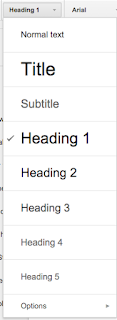
Headings are not only a great way to organize content in your document, but also a great way to navigate through your document. If you change your text to the heading format, you can navigate using the document outline pane or you can directly link to headings using the Insert Link function.


Bookmarks are another helpful feature for linking to specific locations in your document. Check out my video for more!


Idea # 3 - Preview a Google Slide Presentation

With the emphasis on remote learning, this could be a helpful way of sharing an agenda and sharing a picture-in-picture preview of a Google Slide presentation. This is only currently available for the owner of the document but provides you with the ability to work with multiple items on the same screen at once.


An Easy Way to Force Viewers Make Copies of Google Docs and More

How often would you like to create a template of a Google Doc, Sheet, Slide, or Drawings and force a viewer to make a copy?

Perhaps you have users visit the File menu and select Make a Copy. Maybe you use Google Classroom, which can do this automatically for students enrolled in your class.

I do a lot of presentations outside of my school, which means Google Classroom is not an option. Many of the participants in my audiences struggle with making their own copies, which makes finding an easy way (to have users create copies) essential. After doing some research, I found articles by Kasey Bell and Alice Keeler describing a very easy Google trick!

Here is how it works: 

1. Open up your item (Doc, Sheet, Slide, or Drawing)

2. At the end of your item's URL, you should see the word "edit." Change the word "edit" to "copy."
3. Make a copy of your URL and share with your audience

Now you have a quick and painless way to help your viewers make a copy of document, presentation, spreadsheet, or drawing.

An Easy Way to Force Viewers Make Copies of Google Docs and More

How often would you like to create a template of a Google Doc, Sheet, Slide, or Drawings and force a viewer to make a copy?

Perhaps you have users visit the File menu and select Make a Copy. Maybe you use Google Classroom, which can do this automatically for students enrolled in your class.

I do a lot of presentations outside of my school, which means Google Classroom is not an option. Many of the participants in my audiences struggle with making their own copies, which makes finding an easy way (to have users create copies) essential. After doing some research, I found articles by Kasey Bell and Alice Keeler describing a very easy Google Trick!

Here is how it works: 

1. Open up your item (Doc, Sheet, Slide, or Drawing)

2. At the end of your item's URL, you should see the word "edit." Change the word "edit" to "copy."
3. Make a copy of your URL and share with your audience

Now you have a quick and painless way to help your viewers make a copy of document, presentation, spreadsheet, or drawing.

Scaffold Instructions with Google's New Document Outline Update

Navigating long documents can be challenging. Google Docs just created a cool new update called Document Outline, which collates all of your headers within your document into a sidebar. Users can uses the sidebar to navigate from header to header within their document.

This amazingly simple-to-use feature can provide teachers with a valuable tool to scaffold and support learning! Read on to learn how.


How Can I Access Document Outline? 

Accessing this feature is very simple! Go to the Tools menu and select Document Outline.  NOTE: This feature is only effective if you use the Heading formats in Google Docs.


How Can I Use This With Students? 

Not every student learns the same way, which makes providing students with scaffolds and supports are important part of giving instructions. Whenever I have given assignments in my classroom, I have always found that there are three types of students:
  • The experts who wish you would go away and disappear. 
  • The students who need you to hold their hand and guide them through (the students we should be working with)
  • The frequently asked question students, who often feel bad for asking you questions. 
The Outline Document feature is a perfect tool to help students navigate step-by-step instructions, answer Frequently Asked Questions (FAQ's), and access resources. 

For example, after I have composed my instructions in a Google Document, I often develop 3 - 5 frequently asked questions to address high-probability questions (and barriers). In order for it to appear in the Document Outline, I make sure that my questions (or section headers) are in Heading 1 - 5 Formats.

I often answer questions by providing resources, short video tutorials on how to complete the task, short text instructions. Frontload your instructions with scaffolds and supports, so that you can enhance learning and avoid frustration later. Now students can simply click on the hyperlinked question and get the answers they need!

Conclusion:

It is important to provide students with different ways to navigate documents and access information. The Google Document Outline is an easy-to-use feature that provides endless possibilities for teachers and students alike. 


Increasing #Accessibility with Improvements to Google Voice Typing

Several months ago, Google launched its Google Voice Typing tool in Google Docs. This free tool simply takes voice to text technology to help your students compose a writing assignment. Although not 100% accurate (when you think about it, what is?), it is still a valuable resource built into Google Docs.

Over the past several weeks, Google recently made several improvements to this awesome resource. Users can now make the following edits and formats in their document with voice commands:

  • Select Text - you can use your voice to select a specific word, character, item, paragraph, or select all.
  • Change Formatting - use your voice to change the alignment, text formatting, text color, or highlighting. Add bullets, indent paragraphs, change font size, or remove formatting. 
  • Edit Your Document - copy, cut, paste, add headers / footers, and insert a table of contents. 
  • Add / Edit Tables - insert rows, columns, and tables. 
  • Navigate around your document
  • Open Voice Typing help
  • Turn on screen reader support

Click here if you want to see ALL of the options available from Docs Support.

Why This Increases Accessibility: 

Think for a moment about the barriers that writing assignments pose to students. One student may find it difficult to get their thoughts to paper. A student with cerebral palsy may find it difficult to type text, while a student with a broken arm may have the same challenges. How do you meet your learning goal of composing a paper, while addressing the needs of your students? Remember it's all about working smarter and eliminating barriers, so that students can spend more time learning and less time struggling.

New Learn Lead Grow Home!

Hello readers! Happy New Year! It’s hard to believe that 15 years have passed since I launched my Learn Lead Grow blog. As we step into a n...