Exploring the deep underwater confines of the world's oceans used to be a place reserved for the elite few; however, Google Underwater Street View opens up a new world of possibilities for students and teachers alike.
Simply visit www.google.com/maps/streetview/#oceans to go on a virtual dive of some of the most famous underwater places and life forms on earth. Google Underwater Street View provides you with the opportunity to explore reefs, life forms, wreckage sites, and see the impact of climate change.
Showing posts with label Google. Show all posts
Create Amazing Videos with Toontastic 3D
Toontastic is even more amazing than before with Toontastic 3D. The company is now owned by Google and offers engaging ways to tell your stories on iOS and Android devices.
How does it Work?
First, you will want to design your 3D character by using your photo or drawing your own. The animations are absolutely animation.Next, you will begin plotting your story. How will it begin? Where is the climax? How will it end? Toontastic gives you the tools to create an amazing story!
Then, the fun begins! You can bring your characters to life through animations, narration, and creating a soundtrack.
Finally, you can easily export your video without the need for an account.
Conclusion:
Toontasic 3D is a great tool for creating innovative and engaging videos on any device. Whether you have WiFi or none at all, you have the ability to work offline and easily export your videos. The App is free and available to download with no advertisements or in-app purchases!
Anyone Can Now Use Google Classroom!
If you are a G Suite School, then you know the power of Google Classroom. It makes allocating resources, communicating events, and turning in assignments extremely easy!Classroom just recently underwent a huge change! You can now create your own Google Classroom with your personal Google account! This is great news for teachers who want to build their own Classrooms for afterschool activities, professional development, communicating with parents, etc.
Simply visit classroom.google.com to create or join your very first class!
New Quizzes Feature in Google Forms
Did you have a chance to look at Google Forms lately? If not, you may want to check out the new Quizzes feature in Forms! This is a feature many educators have been waiting for and here are some of its key benefits:
Tutorial:
- It is easy-to-use and no Add-ons are required!
- The Quizzes feature grades work for you automatically! Set the correct answer and point value for each question.
- Students can see which questions they missed and receive feedback on the correct answers.
- Students can receive instantaneous feedback after they have completed the quiz or control when results are released. This is an awesome feature in the fight against cheating!
Tutorial:
Want a quick tutorial? Check out my 3 minute tutorial:
Conclusion:
Educators understand the importance of providing students with timely feedback because it is an essential component of the learning process. In an instantaneous society, our students expect quick responses. The new Google Forms Quiz feature saves you time and helps make the learning process more effective.
Using the New Google Slides Audience Q & A Feature
Google Slides recently added a feature that will make your presentations more interactive! The new Q&A feature provides audience members an opportunity to send you questions during your presentation.
How does it work? Check out my brief video!
Conclusion:
Google Slides Q & A is the perfect tool for any student to ask questions. It is perfect for the student who tends to dominate classroom discussion and the shy student, who finds it difficult to ask questions in front of others. With Google Slides Q & A, all students have the ability for their voices to be heard!
How does it work? Check out my brief video!
Conclusion:
Google Slides Q & A is the perfect tool for any student to ask questions. It is perfect for the student who tends to dominate classroom discussion and the shy student, who finds it difficult to ask questions in front of others. With Google Slides Q & A, all students have the ability for their voices to be heard!
Schedule Posts in Google Classroom
Google Classroom just launched a cool new feature for posting announcements, assignments, and questions at a specific date and time. Google Classroom will automatically post your message in your class stream at the right time.
How does it work?
1. If you are using the web version of Google Classroom, you will want to create an announcement, assignment, or question.
2. Click on the drop-down arrow next to the word "Post" and choose "Schedule."
3. Choose the date and time that you would like to post. Google Classroom will do the rest.
Conclusion:
I really like this feature because it gives you an option to plan ahead. You no longer have to post at the exact moment you need an assignment, announcement, or question. Google Classroom lets you plan days, weeks, and even months ahead!
How does it work? 1. If you are using the web version of Google Classroom, you will want to create an announcement, assignment, or question.
2. Click on the drop-down arrow next to the word "Post" and choose "Schedule."
3. Choose the date and time that you would like to post. Google Classroom will do the rest.
Conclusion:
I really like this feature because it gives you an option to plan ahead. You no longer have to post at the exact moment you need an assignment, announcement, or question. Google Classroom lets you plan days, weeks, and even months ahead!
Save to Google: A New Bookmarking Option
Where do you go to bookmark your favorite sites? Many of us turn to Diigo, Delicious, Pocket, Bookmarks in Chrome, and Pinterest. Have you ever heard of the Save to Google Extension?
Simplicity is what makes the Save to Google Extension extremely useful. After you install the extension, visit your favorite site or image and click on the icon to save.
You will be prompted to Save to Google and enter in a tag to make it easier to find your favorite sites and images. There is even an option to import your bookmarks from Chrome.
The best part is that your "saves" are collected and saved at google.com/save and sync to your Google account. Whether you have three saves or three thousand, the Google Save interface is extremely easy to navigate and access your saves from your browser.
The New Goal Setting Feature on the Google Calendar App
If you are an Android or iPhone Google Calendar user, you may have noticed a new feature called Goals. This new feature will help you find time to work out, build a skill, spend time with friends and family, or spend some alone time. The best part is that the App does most of the work for you!How Does It Work?
Instead of entering in a new event or task on your mobile device, choose the new Goal option. Then select the type of goal that you would like to set. Google Calendar currently will help you set goals to work out, build a skill, spend time with friends and family, schedule time for yourself, or help you organize your life.
Once you choose the type of goal you would like to set, you will be prompted to enter in information. For example, if you were to schedule an exercise goal, the App would want to know the type of exercise, frequency, duration, and best time for you.
Once you set the goal, it becomes apart of your Google Calendar schedule throughout the day. If you have to schedule another event during this time, the App will automatically reschedule for you.
Conclusion:
Goal setting is an important part of learning, whether you are a student or adult because humans are naturally goal-oriented. In every human, there is a part of us that wants to measure our performance, accomplishments, and how we stack up against the competition. I
This is critical when we are in the process of learning a new skill or strategy. Goal-setting tools provide the supports we need to self-regulate our efforts. Although, goal-setting may look very different among learners, the Google Calendar App could provide a useful tool for students who engage with electronic media, are visually motivated, or need the scaffolds and supports that this tool provides.
How to Create Form Limits with Form Ranger
Over the past few months, I have grown to love Google Forms and the Form Ranger Add-On to create forms with limits. I often use it for sign-ups, but it can be used to offer students choices. For example, perhaps you want to assign topics for students to present. Students can sign up on a first come first serve basis. Perhaps you want to differentiate an assignment. You could use Google Forms to limit the number of students choosing a particular task.
How do you create a Google Form with limits? I have created 2 resources to help you.
Here is a brief video tutorial:
Here is a how-to guide:
A Google A Day Keeps Students Engaged
You might have heard the expression, "an apple a day, keeps the doctor away," but a Google a day can keep students engaged!
What is A Google A Day?
A Google A Day is a free site aimed at sharpening your students ability to search and find answers through a game-like format. I love the site's motto, "there's no right way to solve it, but there's only one right answer." It is very simple. Each day, you are asked three different questions and you have to find the answer by any means possible.
The quicker you find your answer, the more points you earn. Need help? A Google A Day can provide you with hints, such as key words and the first letters of the term.
How it Can Benefit Students?
Problem solving has become an essential skill for students (and teachers) in the era of grit, the growth mindset, and STEM. We are constantly looking for ways to challenge our students, grow their abilities, and sharpen their skill sets. Google introduced us to "moonshot thinking" and to look at problems through unique perspectives. How about trying A Google A Day? This challenge provides every student with a chance to problem solve and shine.
Since A Google A Day asks you the same set of questions per day, why not use it to challenge your class as a bell ringer activity? The last five minutes of class are often the most unproductive minutes of class. Why not challenge your students until the ending moments of class?
What is A Google A Day?
A Google A Day is a free site aimed at sharpening your students ability to search and find answers through a game-like format. I love the site's motto, "there's no right way to solve it, but there's only one right answer." It is very simple. Each day, you are asked three different questions and you have to find the answer by any means possible.The quicker you find your answer, the more points you earn. Need help? A Google A Day can provide you with hints, such as key words and the first letters of the term.
How it Can Benefit Students?
Problem solving has become an essential skill for students (and teachers) in the era of grit, the growth mindset, and STEM. We are constantly looking for ways to challenge our students, grow their abilities, and sharpen their skill sets. Google introduced us to "moonshot thinking" and to look at problems through unique perspectives. How about trying A Google A Day? This challenge provides every student with a chance to problem solve and shine.
Since A Google A Day asks you the same set of questions per day, why not use it to challenge your class as a bell ringer activity? The last five minutes of class are often the most unproductive minutes of class. Why not challenge your students until the ending moments of class?
Google Image Quiz: An Engaging Way to Teach Search
Teaching students how to search for information is a valuable skill in the 21st Century. I'm amazed at how many students do not know how to search effectively. Instead of using keywords, they type full questions (punctuation and all). The Google Image Quiz is a valuable resource, which takes the form of a game aimed at helping students learn the power of queries. This resource is designed by Silvio Lorusso.
After visiting the website, you will see a random image appear on your screen. Below the image, you are asked to guess the keyword or query used to find the image in Google.
Not sure where to start? Google Image Quiz gives you with several hints. First, each box represents a letter in the query.
Need a little more help? Click on the Hint button to reveal one letter at a time.
Want to start over? Click on the Show New Image button for a new image to search for.
Why is Searching Important?
Information is a valuable commodity in our world today, but finding information is even more valuable. Think about all of the time students waste because they don't know the language of searching. How can we teach our students the language needed for mastery and efficiency? Many of us turn to librarians, computer teachers, or media specialists to teach an annual lesson on Google searching. No doubt this is valuable; however, in order for something to become a skill, it has to be practiced. Google Image Quiz provides teachers with an engaging activity, which teaches students valuable skills.
Are you aware of any other cool search games like Google Image Quiz? I'd love to hear about it and feature it on my blog!
Increasing #Accessibility with Improvements to Google Voice Typing
Several months ago, Google launched its Google Voice Typing tool in Google Docs. This free tool simply takes voice to text technology to help your students compose a writing assignment. Although not 100% accurate (when you think about it, what is?), it is still a valuable resource built into Google Docs. Over the past several weeks, Google recently made several improvements to this awesome resource. Users can now make the following edits and formats in their document with voice commands:

- Select Text - you can use your voice to select a specific word, character, item, paragraph, or select all.
- Change Formatting - use your voice to change the alignment, text formatting, text color, or highlighting. Add bullets, indent paragraphs, change font size, or remove formatting.
- Edit Your Document - copy, cut, paste, add headers / footers, and insert a table of contents.
- Add / Edit Tables - insert rows, columns, and tables.
- Navigate around your document
- Open Voice Typing help
- Turn on screen reader support
Click here if you want to see ALL of the options available from Docs Support.
Why This Increases Accessibility:
Think for a moment about the barriers that writing assignments pose to students. One student may find it difficult to get their thoughts to paper. A student with cerebral palsy may find it difficult to type text, while a student with a broken arm may have the same challenges. How do you meet your learning goal of composing a paper, while addressing the needs of your students? Remember it's all about working smarter and eliminating barriers, so that students can spend more time learning and less time struggling.
Kiddle: Kid-Friendly Visual Search Engine
There has been a lot of buzz about a new kid-friendly visual search engine called Kiddle. Take one look at the site and you may think it looks like another familiar search engine; however, it is NOT currently one of Google's products.Search Results:
Kiddle searches are handpicked and checked by Kiddle editors or filtered by Google safe search. Most search results contain a thumbnail, to makes it easier to scan results and help students who need visual clues as they are searching.
Inappropriate query results are filtered and blocked by Kiddle's friendly robot.
Caution:
Although this is a safe search engine, keep in mind that no search engine truly replaces adult supervision. This search engine does NOT block out all inappropriate pictures (neither does Google Safe Search). For example, if you look up Kim Kardashian, it brought up sex tape references. Kids can get very creative when searching for inappropriate things and search engines don't always block everything!
If you or your students do stumble upon an inappropriate content, you can contact Kiddle to suggest keywords that should be blocked in the Keyword Blocking Request Form.
Conclusion:
Whether you are using Google, Kiddle, or another search engine, it is important to keep in mind that no search engine is completely safe. Kids will always need adult supervision while cruising the Internet because there are always new terms, loop holes, and human error that can lead to unexpected results.
5 Engaging Ways to Use Google Forms
Google Forms is one of my favorite tools because of the infinite possibilities it provides any classroom. Here are 5 ways that you can incorporate Google Forms into your classroom today:
1. Pre-Assessment Tool
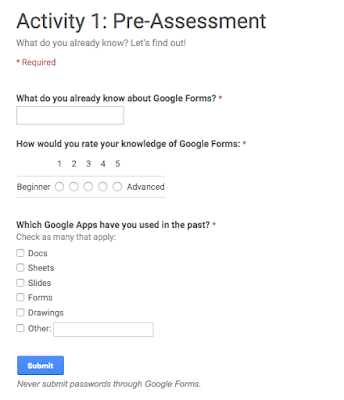
What do your students already know? What misconceptions do they have? Creating a Google Form offers excellent tools like multiple choice, rating scales, and text questions to gauge your participant's knowledge. This is extremely helpful trying to get a temperature of your class, as well as making your lesson more effective and more efficient.
2. The Power of a Poll
Polls are a great way to measure likes, dislikes, feelings, and perceptions; however, they are also a great authentic teaching tool. You can use your own polls to teach students about statistics, bias, misconception, etc. Polls are not just limited to the math classroom because they can be effective in any classroom.
Want to teach your students about democracy? Why not have your own class election? Have students in your science classroom keep valuable data on experiments, types of species, etc. in a real-life environment.
3. Start your Lesson with a Bang!
The start of many lessons usually begins with a "hook" or way to engage students. Use a Google Form to embed a video (or picture) and a writing prompt. This is the perfect tool for any subject area because writing translates across the curriculum. Have students state their opinion, share a memory, summarize a concept, make a prediction, or share a current event.
4. Choose Your Own Adventure
Do you remember reading choose your own adventure books in school? Why not make your own "adventure" using a Google Form? Students become highly engaged when they have options or choices for what they learned.
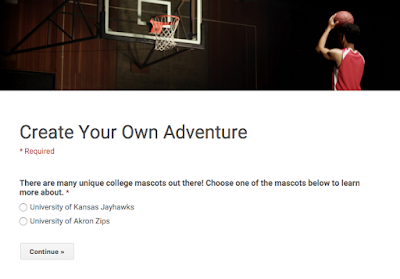
I was recently giving a workshop to demonstrate how this particular idea might work. We had participants choose which college mascot they would like to learn about. Their choice directed them to a new page, where they would learn more about the mascot. I provided text and pictures, but you could also include videos and links.
When participants finished, they were directed to a page containing a brief quiz to assess their understanding. Want to see it in action? Check it out!
5. Tweeter Board
Want to get your student's tweeting without Twitter? Use the Tweeter Board template developed by Tammy Worcester Tang. This amazing resource is a Google Form that collects data into a Google Spreadsheet. It is a great resource to use the power and engagement of social media without needing to use social media! Click here to learn more.
Conclusion:
There are literally hundreds of other possibilities for Google Forms. What ideas do you have? I'd love to hear them!
1. Pre-Assessment Tool

What do your students already know? What misconceptions do they have? Creating a Google Form offers excellent tools like multiple choice, rating scales, and text questions to gauge your participant's knowledge. This is extremely helpful trying to get a temperature of your class, as well as making your lesson more effective and more efficient.
2. The Power of a Poll
Polls are a great way to measure likes, dislikes, feelings, and perceptions; however, they are also a great authentic teaching tool. You can use your own polls to teach students about statistics, bias, misconception, etc. Polls are not just limited to the math classroom because they can be effective in any classroom.
Want to teach your students about democracy? Why not have your own class election? Have students in your science classroom keep valuable data on experiments, types of species, etc. in a real-life environment.
3. Start your Lesson with a Bang!
The start of many lessons usually begins with a "hook" or way to engage students. Use a Google Form to embed a video (or picture) and a writing prompt. This is the perfect tool for any subject area because writing translates across the curriculum. Have students state their opinion, share a memory, summarize a concept, make a prediction, or share a current event.
4. Choose Your Own Adventure
Do you remember reading choose your own adventure books in school? Why not make your own "adventure" using a Google Form? Students become highly engaged when they have options or choices for what they learned.
I was recently giving a workshop to demonstrate how this particular idea might work. We had participants choose which college mascot they would like to learn about. Their choice directed them to a new page, where they would learn more about the mascot. I provided text and pictures, but you could also include videos and links.When participants finished, they were directed to a page containing a brief quiz to assess their understanding. Want to see it in action? Check it out!
5. Tweeter Board
Want to get your student's tweeting without Twitter? Use the Tweeter Board template developed by Tammy Worcester Tang. This amazing resource is a Google Form that collects data into a Google Spreadsheet. It is a great resource to use the power and engagement of social media without needing to use social media! Click here to learn more.
Conclusion:
There are literally hundreds of other possibilities for Google Forms. What ideas do you have? I'd love to hear them!
4 Reasons Why Teachers and Students Should Use Google Keep
I have found that many teachers do not realize the power of Google Keep! It is one of Google's most useful, but little known tools available as an iOS App, Android App, and Google App. Here are 4 reasons why you should use Google Keep:
What makes successful people successful? They are efficient with their time. Why not create a new note to create as a to-do lists to keep yourself (or students) on task? Students could very easily use notes to keep track of homework assignments or keep track of tasks needing to be completed for an assignment.
As you begin using Google Keep, you may find yourself creating numerous notes. With so much information, Google Keep provides you with powerful search tools to find what you are looking for by text or note features like labels, color, images, audio, and even who you shared your note with.
1. To-Do or Not To-Do? That is the Question!
What makes successful people successful? They are efficient with their time. Why not create a new note to create as a to-do lists to keep yourself (or students) on task? Students could very easily use notes to keep track of homework assignments or keep track of tasks needing to be completed for an assignment.
Best of all, notes can be customized in ways that work best for you:
- Add checkboxes so that you can "check" things off your list
- Set reminders based on your location or time
2. Plan and Collaborate
Collaboration is an important skill in the 21st Century and Google Keep provides an easy-to-use platform to inspire group planning. Students can easily share ideas, notes, and images with other users in realtime.
Google Keep provides students with an opportunity to learn the art of prioritization, easily moving individual list items in a way that makes sense.
3. Excellent Search Features
As you begin using Google Keep, you may find yourself creating numerous notes. With so much information, Google Keep provides you with powerful search tools to find what you are looking for by text or note features like labels, color, images, audio, and even who you shared your note with.
4. Remind Yourself in the Way That Works Best
We all learn and think differently, which means we plan differently as well. Whether color-coding notes or reminding yourself images, text, and audio (on the mobile App), Google Keep provides you with a way to keep information in a way that works best for you.
Conclusion:
Have you tried Google Keep? I'd love to hear how you use it personally, professionally, and with students.
Help Students Monitor Progress with Progress Bar Timer
How do you help students learn how to reach their goals? This is an important aspect of self-regulation or how we help students develop important intrinsic, self-assessment, and coping skills. Using a progress bar can be a great strategy to provide our students with a tangible way of measuring their progress.
The Progress Bar Timer App is an excellent Google App that you could use to help measure student performance on your Chrome Browser. This is the perfect tool for Chromebook schools. After installing the App on your Chrome Browser, you or your students can measure performance in three different ways:
1. Counter
The counter feature is the perfect way to measure performance. Use it to count the number of books read or the number of pounds you shed. Simply add a bar, provide a description, then enter a starting value and ending value. Once your bar is installed, you can manually add or reduce the number.
2. Timer
The timer feature acts like an egg timer and provides a count down. This might be a perfect tool to help students keep track of study time, free time, and even exercise time. Need to take a break? You can pause the timer or reset it so that it can be used again.
3. Clock Feature
The clock feature can be a great study tool to help students visually see how much time they have spent on a task and how much longer they have to go. This is a great tool to keep things in perspective.
Conclusion:
Self-regulation is an important intrinsic, self-assessment, and coping skill that students (and adults) need to learn. Self-regulation can be thought of as "mind over matter." Sometimes changing our perspective or measuring our performance can help in achieving our goals! The Progress Bar Timer can be a great tool to tangibly measure student progress.
Create Your Own Google Dropbox with The Work Collector
Work flow is always a discussion in 1:1 and BYOD environments. Tools like Google Classroom, Edmodo, Schoology, and Dropbox are great ways to collect student work, but I want to introduce you to another excellent tool that combines the power of a dropbox and Google Drive.
The Work Collector lets you collect student work on a computer or tablet, then place it automatically in your Google Drive. I first learned about this tool from The Techie Teacher, who introduced it in this blog post. Thank you!
How does it work?
First you need to create your own work collect by following the instructions to install this script. It is very easy to do!
Next, you will need to share the link to The Work Collector with your students. The Techie Teacher recommends bookmarking the URL or developing a QR Code for student's to access. Need more info on QR Codes? Check out my post.
Finally, have your students add their name, choose the image or file from their device, and upload. Student work will be placed into a Google Drive folder, much like Google Classroom does.
Conclusion:
What are your favorite ways to collect student work? The Work Collector may need to be added to your arsenal. Not only is this a great way for students to turn in work, but it can be a great way to collect files and images during professional development. student work
The Work Collector lets you collect student work on a computer or tablet, then place it automatically in your Google Drive. I first learned about this tool from The Techie Teacher, who introduced it in this blog post. Thank you!
How does it work?
First you need to create your own work collect by following the instructions to install this script. It is very easy to do!
Next, you will need to share the link to The Work Collector with your students. The Techie Teacher recommends bookmarking the URL or developing a QR Code for student's to access. Need more info on QR Codes? Check out my post.
Finally, have your students add their name, choose the image or file from their device, and upload. Student work will be placed into a Google Drive folder, much like Google Classroom does.
Conclusion:
What are your favorite ways to collect student work? The Work Collector may need to be added to your arsenal. Not only is this a great way for students to turn in work, but it can be a great way to collect files and images during professional development. student work
Subscribe to:
Posts (Atom)
New Learn Lead Grow Home!
Hello readers! Happy New Year! It’s hard to believe that 15 years have passed since I launched my Learn Lead Grow blog. As we step into a n...
-
Hello readers! Happy New Year! It’s hard to believe that 15 years have passed since I launched my Learn Lead Grow blog. As we step into a n...
-
If you are like me, you spend a lot of time browsing through different articles on the Internet and want a solution for revisiting them when...
-
As our world continues to advance in its application of AI, it is important to educate our students and teachers on the potential of generat...