Take the Guess Out of Research: Create Your Own Custom #Google Search Engine

One of the biggest challenges of having students research information is finding appropriate resources. In a previous post, I had suggested Five Google Search Tips to Make Your Life Easier; however, how do you support students who have difficulty finding resources? How do you provide relevant resources for your students with learning disabilities to use? A great solution could be to create your own Google Custom Search engine.

What is it? 

Google Custom Search engines allow you to create your own search engine (powered by Google of course). You determine which sites students can use and cannot use.

For example, I recently had my students do a project on Maslow's Hierarchy of Needs; however, I did not want them to use Wikipedia. I copied and pasted the URL of several relevant articles into my search engine, which I shared with students. When students typed in "Hierarchy of Needs," my custom search engine filtered information from my suggested articles and NOT Wikipedia. Check it out here!


How do you create one? 

Step 1: First you want to make sure that you login to Google using your Google login. Then you will need to visit the Google Custom Search Engine page.

Step 2: When you sign in, you will be directed to your dashboard. Choose "Add" to create your own search engine.

Step 3: Copy and paste the URL's of websites that you want students to "search" through. There are other advanced options that you can choose from as well; however, this is the easiest way to set up your search engine.

Step 4: Give your search engine a name and click create! How do you share your search engine? Google provides you with a URL which you can share with students in your classroom.

Need help? Check out my tutorial on YouTube!


November is Clicks for a Cause Month!
Last November, I started a new tradition called "Clicks for a Cause." The concept was easy. You visit my blog, I donate!

I would like to continue again this year! For each visit to my blog during November, I would donate a penny to help baby Adam Maldonado and his family. Adam has been through more surgeries and procedures in his short life time, than most of us have been through our entire life. See his story here

At the end of November, I will be making a contribution to the family's GoFundMe page, to help with the enormous medical bills his heart procedures have cost. 

How can you get involved?
  • Visit and share my blog with others. I have others who are matching my contribution. The more clicks, the more money we raise! 
  • Like Adam's Facebook page and keep updated on his condition.
  • Pray for Adam and his family!
  • Make a contribution to the family's  GoFundMe page
  • Please contact me if you have any questions or if you have a  HEART to help a child in need!

No Field Trips? Take a Tour with #Google Through Tour Builder

Just think for a moment about the value of field trips. Our students can see and experience things that they may never have the opportunity to outside of the classroom (Multiple Means of Representation). Field trips engage and excite students because they make learning real and fun (Multiple Means of Engagement). Field trips are becoming a rare opportunity in many of our schools, due to budget, time, and safety concerns. It may not be practical for students to take a field trip each week, but now you can for free with Tour Builder.

What is it? 

Tour Builder is a free web application that uses the power of Google Earth to create custom made field trips. Share where you have been in the world, add pictures, video or text. Because this site uses the power of Google Earth, you will have to download the free Google Earth plugin available on Windows computers and Macs. 

It was originally developed for military service members to share their experiences with their families; however, the site quickly gained popularity with the general public.  You can browse through the gallery of existing tours (many of them military personnel) or use your Google login to create your own! 

How can I create my own tour? 


Step 1: Create a Tour 

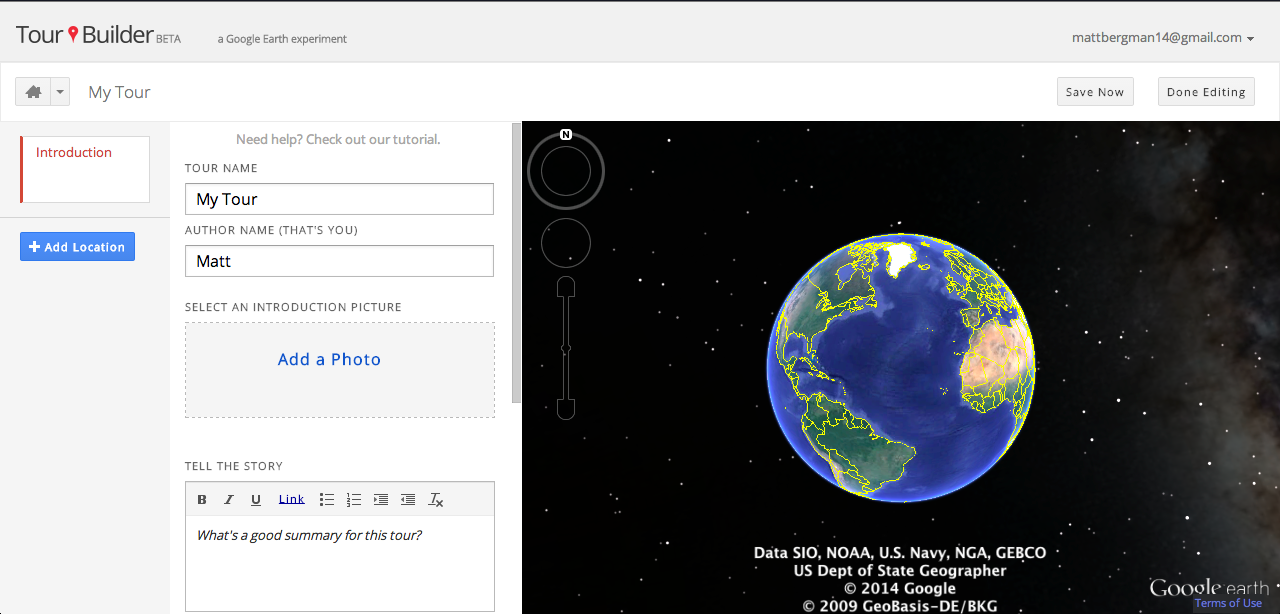
After you have logged into Google, choose Create A Tour. You will be prompted to give your tour a name. Your tour is automatically set to private, unless you want to share this tour with others. 


Step 2: Begin Creating

You will be directed to the Tour Builder dashboard, where you will add your locations and use various tools like photo, video, text, and links to tell your story.

Since this site uses Google Earth, you can  pick a location and show it on the map or zoom in to street view. A map doesn't always tell the story, so you need to add text, photos, and videos to enhance the experience. Tour Builder lets you place up to 25 photos or videos in a gallery that will play during your tour. Don't have a picture or video of that location? No problem! Search Google images or YouTube directly from Tour Builder.

Add a description of your tour with hyperlinks in the text section. You can share specific dates and even uses the historical imagery feature (in Advanced Options) to travel back in time and show what your location looked like years ago. 

Here's a tutorial I have created on using Tour Builder!


Step 3: Share

When you are finished with creating your tour, you can begin sharing it with others through a click of a button! Want to see my tour? Check out where I have lived throughout my life

How can I use this? 

This tool could very easily be incorporated into any classroom. Create your own tour and add your own academic content to make the tour meaningful. Have your students use the collaboration feature and create their own map. 


November is Clicks for a Cause Month!
Last November, I started a new tradition called "Clicks for a Cause." The concept was easy. You visit my blog, I donate!

I would like to continue again this year! For each visit to my blog during November, I would donate a penny to help baby Adam Maldonado and his family. Adam has been through more surgeries and procedures in his short life time, than most of us have been through our entire life. See his story here

At the end of November, I will be making a contribution to the family's GoFundMe page, to help with the enormous medical bills his heart procedures have cost. 

How can you get involved?
  • Visit and share my blog with others. I have others who are matching my contribution. The more clicks, the more money we raise! 
  • Like Adam's Facebook page and keep updated on his condition.
  • Pray for Adam and his family!
  • Make a contribution to the family's  GoFundMe page
  • Please contact me if you have any questions or if you have a  HEART to help a child in need!


Cool #Chrome Extensions: Too Long Didn't Read #GoogleEDU

I am always on the lookout for inspiration for stories on my blog. On Saturday, I spent the day with a group of passionate educators at the Buck's County IU in Doylestown, PA to learn about Google. This opportunity inspired me to write about some of the great tools and extensions I learned about, which will enhance your Google experience. Enjoy!

Did you ever give students a reading assignment that they didn't read? Have you ever wanted to read a particular article, but it was way too long? If there is not enough time in the day, you hate reading, or you just want a more efficient way of browsing the web, the Too Long Didn't Read (TLDR) may be for you. 

What is it? 

TLDR is a free plugin you can install on your browser to condense long articles into a brief synopsis. Once the plugin is installed, you can visit any webpage you would like. Click on the TLDR icon and you will receive several different options to view your selected article. 
  • Summary - provides a brief summary of the article, so you can decide whether or not to read it or not!
  • Short, medium, or long summaries of the article. Think of these as the Cliff Notes version.
  • The original article with all of the junk filtered out. 

Want to see it in action? 


How can it be used in the classroom? 

This is the perfect tool for helping students conduct research because they can receive a synopsis of the article before choosing to read the entire. It can save time and energy. It could also be used to help students remove unnecessary distractions to the article, which is especially important for students with learning disabilities and trouble reading.


November is Clicks for a Cause Month!
Last November, I started a new tradition called "Clicks for a Cause." The concept was easy. You visit my blog, I donate!

I would like to continue again this year! For each visit to my blog during November, I would donate a penny to help baby Adam Maldonado and his family. Adam has been through more surgeries and procedures in his short life time, than most of us have been through our entire life. See his story here

At the end of November, I will be making a contribution to the family's GoFundMe page, to help with the enormous medical bills his heart procedures have cost. 

How can you get involved?
  • Visit and share my blog with others. I have others who are matching my contribution. The more clicks, the more money we raise! 
  • Like Adam's Facebook page and keep updated on his condition.
  • Pray for Adam and his family!
  • Make a contribution to the family's  GoFundMe page
  • Please contact me if you have any questions or if you have a  HEART to help a child in need!
Enjoy Typing on Your iPad with Swype (FREE APP for a Limited Time!)

Typing is one of the biggest challenges of using a tablet. It has been made easier with some of the new updates mobile operating systems; however, it still can be challenging. This can frustrate yourself and students with dexterity challenges.

The Swype Keyboard App (available in the Android and iTunes store) can be a great alternative to the traditional keyboards available on most devices. It is a third party keyboard, which means you will have to install it; however, it is well worth it because it makes it easier to type on a tablet or mobile device.

How does it work? Once installed, you can literally swipe your fingers across the keyboard to select the letters you want without worrying about hitting the wrong keys. How is this possible? Swype's accuracy is based on how quickly it learns your typing and word selection patterns.

The best part is that it is free on the iPad for a short time! It is well worth the download.


November is Clicks for a Cause Month!
Last November, I started a new tradition called "Clicks for a Cause." The concept was easy. You visit my blog, I donate!

I would like to continue again this year! For each visit to my blog during November, I would donate a penny to help baby Adam Maldonado and his family. Adam has been through more surgeries and procedures in his short life time, than most of us have been through our entire life. See his story here

At the end of November, I will be making a contribution to the family's GoFundMe page, to help with the enormous medical bills his heart procedures have cost. 

How can you get involved?
  • Visit and share my blog with others. I have others who are matching my contribution. The more clicks, the more money we raise! 
  • Like Adam's Facebook page and keep updated on his condition.
  • Pray for Adam and his family!
  • Make a contribution to the family's  GoFundMe page
  • Please contact me if you have any questions or if you have a  HEART to help a child in need!


Edmodo Snapshot, Are You Using It?

Addressing the needs of the Common Core State Standards (CCSS) is everyone's responsibility. How are you helping prepare kids for the future? If you are already using Edmodo, then it is as easy as using Edmodo's Snapshot feature. This is a free feature on Edmodo, which allows you to assess students on specific ELA or Math CCSS.

Want to see how easy it is? Check out my video tutorial:


Now what? Edmodo provides excellent data tools to help you address the needs of students. Want to see how it works? Check out my video tutorial:


With most educational technology tools, you have to do a ton of work to prepare and manage in advance. What I like most about the Snapshot feature is that there is very little work you have to do on your part.

November is Clicks for a Cause Month!
Last November, I started a new tradition called "Clicks for a Cause." The concept was easy. You visit my blog, I donate!

I would like to continue again this year! For each visit to my blog during November, I would donate a penny to help baby Adam Maldonado and his family. Adam has been through more surgeries and procedures in his short life time, than most of us have been through our entire life. See his story here

At the end of November, I will be making a contribution to the family's GoFundMe page, to help with the enormous medical bills his heart procedures have cost. 

How can you get involved?
  • Visit and share my blog with others. I have others who are matching my contribution. The more clicks, the more money we raise! 
  • Like Adam's Facebook page and keep updated on his condition.
  • Pray for Adam and his family!
  • Make a contribution to the family's  GoFundMe page
Please contact me if you have any questions or if you have a  HEART to help a child in need!


RISE Up and Provide Meaningful Feedback to Students: Kaizena Audio Comments in Google Docs (Part 2)


Feedback is an essential element to learning, but why do many of us struggle with providing valuable feedback to improve student performance? My last post described Emily Wray's RISE Model for meaningful feedback and self evaluation.

What does RISE stand for?
  • Reflect through making connections, agreements, or disagreements with the student work.
  • Inquire by using our understanding and analyzing skills to develop meaningful dialog.
  • Suggest by analyzing and evaluate student by providing suggestions to develop a deeper understanding and higher quality product.
  • Elevate or transforming the student product into higher levels of creativity and problem-solving.
The Problem with Feedback:

Brain research tells us that each student interprets instructions and feedback differently. Why do we expect ALL students to understand red marks, x's, check marks, smiley faces, and good jobs?? This type of feedback may not be helpful. Many of us know this and want to give better feedback, but it is time consuming! Using Google Docs? Kaizena is an excellent tool that integrates within Google to increase the level of feedback, while decreasing the amount of time it takes.

Kaizena:

Kaizena is a web tool designed to seamlessly integrate into Google Docs, providing teachers with the ability to provide meaningful feedback to students through links, audio or text comments. Comments are shared through a private dropbox generated by Kaizena and accessible in the comments section of Google Docs and Presentations. This dropbox can be customized. For example, if you wanted a box for each class you teach, you could do so.

When students are ready to share their Google Docs or Presentations with you, they will need to access a link to your Kaizena profile. When students visit this profile, they will select their file from Google, choose which dropbox to leave it in, and wait for your feedback. 

Want to see it in action? Check out this YouTube tutorial!


The teacher will receive a dashboard alert on Kaizena, stating that they have received a submission. They can go through the submission and click and drag over areas that need commenting on. They can leave feedback in the form of audio, text, or hyperlinked comments. 

Students are able to access comments within the Comments section of their Google Doc or Presentation. The comment will contain a link to Kaizena, where all of the comments are stored. The best part is that students can also leave feedback in the form of audio, video, and links. It starts a dialog to improve performance. 

Why not use this tool? It's the perfect companion in any classroom because it provides multiple ways to share feedback, so that all students have the ability to understand and improve their performance! 

November is Clicks for a Cause Month!


Last November, I started a new tradition called "Clicks for a Cause." The concept was easy. You visit my blog, I donate!

I would like to continue again this year! For each visit to my blog during November, I would donate a penny to help baby Adam Maldonado and his family. See his story here

At the end of November, I will be making a contribution to the family's GoFundMe page

How can you get involved?

  • Visit and share my blog with others. I have others who are matching my contribution. The more clicks, the more money we raise! 
  • Like Adam's Facebook page and keep updated on his condition.
  • Pray for Adam and his family!
  • Make a contribution to the family's  GoFundMe page
Please contact me if you have any questions or if you have a  HEART to help a child in need!

Clicks for a Cause 2014!

Last November, I started a new tradition called "Clicks for a Cause." The concept was easy. You visit my blog, I donate!

I would like to continue again this year! For each visit to my blog during November, I would donate a penny to help baby Adam Maldonado and his family. See his story here

At the end of November, I will be making a contribution to the family's GoFundMe page

How can you get involved?

  • Visit and share my blog with others. I have others who are matching my contribution. The more clicks, the more money we raise! 
  • Like Adam's Facebook page and keep updated on his condition.
  • Pray for Adam and his family!
  • Make a contribution to the family's  GoFundMe page
Please contact me if you have any questions or if you have a  HEART to help a child in need!

New Learn Lead Grow Home!

Hello readers! Happy New Year! It’s hard to believe that 15 years have passed since I launched my Learn Lead Grow blog. As we step into a n...