Speechify: An AI Text-to-Speech Game Changer

Did you know that AI can be a useful tool for increasing accessibility in the classroom?

You may have had a student who has struggled with reading comprehension and needs additional scaffolding and support, such as an audio version of a text. Although this accommodation is helpful, it can be time-consuming and sometimes challenging to manage as a teacher.


Speechify: An AI Text-to-Speech Game Changer!

Luckily, there are various tools out there that can convert text-to-speech; however, I want to share with you a free AI tool called Speechify that is changing the way that we can support students. I like the application for various reasons.


First, it is available in multiple formats and across multiple devices as a web application, Chrome Extension, Mac application, and more.

Secondly, Speechify provides users with text-to-speech support in Google Docs, websites, email, Canvas, PDFs, images, and more. One of the most powerful tools is its ability to take a screenshot and read from it! For example, I took a screenshot of a Google Slide, and it read it to me!

Finally, I love that it provides both free and paid versions, which is economically feasible for students who may not have the financial resources to access.


Video Tutorial on Speechify's Text-to-Speech Feature

Want to learn more? Check out this free video tutorial for more!


The First Five is an SEL Gamechanger!

Although many of us see the value of building relationships with our students, researching, planning, and implementing Social-Emotional Learning (SEL) activities can be time-consuming. 

The First Five is a daily resource designed to make educators' lives easier! Just sign up, and it will be delivered to your email inbox, filled with practical ideas that can be implemented in the first five minutes of class. Whether you are a primary or secondary educator, you will receive 18 new activities and ideas daily that focus on connecting with students, self-care, and character development.

Still not sure? You can take a look at today's First 5 for yourself. Simply choose whether you are a primary or secondary teacher to see! 


Each First Five contains nine vetted SEL activities. Simply select the best option in your classroom that day and go! It's literally that easy. For example, check out today's check-in activity: 


Check out the video below for more information: 


Quillbot: An Amazing AI Tool for Writing Support and Paraphrasing

Quillbot is an artificial intelligence tool aimed at helping users improve their writing. Unlike generative AI tools like Chat GPT, users provide the original text to Quillbot, and it supplies suggestions, much like spelling and grammar checkers in word processing tools. However, QuillBot can be used to help users with a variety of tasks, such as paraphrasing, grammar and plagiarism checking, summarizing, and translating.


Writing is a valuable exercise in translating thoughts and ideas into language; however, many of our students struggle with writing because they are intimidated, uncertain, and confused about the writing process. Quillbot is designed to provide students with helpful suggestions aimed at refining their original ideas.


In addition, Quillbot can be used to rephrase reading passages that students have difficulties understanding. For instance, imagine that students are struggling with understanding a particular reading passage. They could use Quillbot to rewrite content in a way that makes sense.


Audio Note: Using AI to Organize Your Notes and Ideas!

Artificial Intelligence (AI) is more than Chat GPT writing prompts, driverless cars, and chatbots. In fact, one of the biggest benefits of AI is that it can help us organize our thoughts more effectively. Take for instance a new AI application I recently came across called Audio Note


What is Audio Note? 

Audio Note allows you a place to record voice notes (up to one minute on the free version) or provide text notes (unlimited in the free version), then use AI to rewrite in whatever format you need. You can currently use AI to rewrite your thoughts as a(n):

  • Note
  • List
  • Email
  • Journal
  • Tweet 
  • Linked In


How to Use it With Students? 

When I look at Audio Note, I see endless possibilities for helping students. Imagine a student who vigorously typed and copied down your class notes from a recent lecture, but they are still struggling with everything or trying to put it all together. With Audio Note, they could use AI to organize and rewrite their notes, making studying a breeze.


Update

 Hello Learn Lead Grow Readers!

A few weeks ago, I had mentioned that I was planning on retiring from blogging. The outpour from you has been amazing! 

After much thought and consideration, I have decided to continue blogging on a limited basis. I appreciate your support!

Matt

5 Tips for Redesigning Your Reading Assignments with UDL in Mind

Imagine you have decided to give students the same reading assignment in your room. The learning goal states that all students will read the same article; however, you realize there is tremendous variability in your classroom. How do you plan with variability in mind? 

The Universal Design for Learning (UDL) framework is a proactive framework for designing accessible and engaging lessons for all students. It is based on brain research and states that there are typically three types of barriers and ways to plan for those barriers proactively.


Redesigning the look of a reading assignment to create access is something that is extremely easy to plan for, but is often overlooked. Here are 5 tips for using UDL to redesign the reading assignment with access in mind (aka Multiple Means of Representation). 


Tip # 1: Change the Background Color

Research indicates that pure white backgrounds and black text can generate difficulties reading for students with Dyslexia and cream color backgrounds (light yellow, orange, etc.) are more conducive for reading. This can be done in Google Docs by visiting the File menu and choosing Page Setup. 


Tip # 2: Use a Serif Font

Did you know that Sans Serif fonts (fonts without dashes at the end of each letter) are difficult for students with Dyslexia to read? Instead, use Serif fonts to make it easier for readers to identify letters, such as Calibri, Comic Sans, Open Dyslexic, and Lexend.

Tip # 3: Provide Options for Reading


Providing students with printed, digital, and audio options are helpful for increasing accessibility. Digital files in PDF format can easily be manipulated, annotated, and used with screen readers. Did you know that you can save a Google Doc in PDF format? Simply visit the File menu and choose Download as a PDF. 


Tools like Adobe Reader, Speechify, and Read & Write for Google Chrome have built-in text-to-speech features to read PDF’s and Google Docs. In addition, Vocaroo makes it easy to create a voice-recorded audio version of the article. 

Tip # 4: Build-In Background Knowlege

We cannot assume that all students have the same knowledge and background knowledge when providing reading assignments; therefore, helpful tools like videos and images are extremely helpful for building student understanding and context. 

Many teachers find using YouTube 360 videos helpful for providing students with a customized video experience, where students can navigate 180 and 360-degree spherical videos. 

Here is one of my favorite YouTube 360 videos


Tip # 5: Hyperlink Important Vocabulary Terms

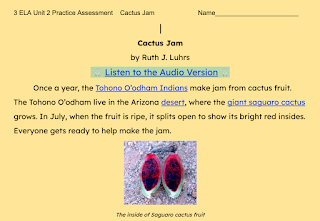
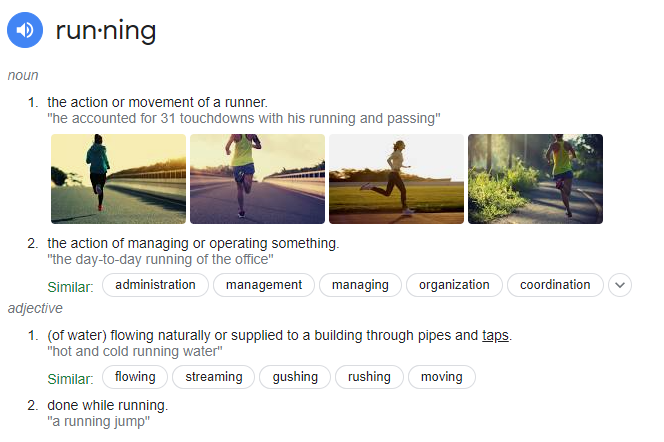
Do you know some of the vocabulary terms that students will have difficulty with? It may be helpful to add hyperlinks to important definitions students may need. Although there are many great online dictionaries available, you may want to consider doing a Google search for a specific definition.

For example, if you did a search for “definition of running,” Google would provide you with the definition, images, and an audio recording of how to pronounce the word running. Copy and paste this URL as a hyperlink in your document for students to access. 


Conclusion 

In conclusion, embracing the Universal Design for Learning (UDL) framework equips educators with the tools and resources needed to revamp reading assignments for accessibility and engagement. Implementing strategies like adjusting background colors, using readable fonts, offering diverse reading options, incorporating multimedia resources, and hyperlinking key vocabulary terms fosters an environment where all students can comprehensively access and engage with the material. UDL's proactive approach paves the way for a more equitable and enriching learning experience, accommodating the diverse needs and strengths of every learner.


VoiceMod: Using AI to Create Songs to Showcase Learning

Artificial Intelligence (AI) seems to be everywhere you look today! I recently saw a social media post claiming that you would be "left behind" if you were not "using AI in the classroom." 

I am not going to lie, AI can be highly intimidating; however, it can also be used to help our students learn in new and exciting ways. If we think our students need to start using AI, then we are kidding ourselves. 

Create Songs with AI Through VoiceMod

I recently came across a tool called VoiceMod, which uses Artificial Intelligence to generate songs. What an excellent way for students to express their knowledge in new and creative ways! Students write the lyrics, and VoiceMod generates a song based on the words, 

How it Works

Here's how it works.

Step 1: Visit the VoiceMod website and be sure to sign up for a free account!

Step 2: Choose Create Your Content and decide how you want to create content. Do you want to upload your own song? Do you want to type in your lyrics and let AI do the rest? 


Step 3: Create and share your content! I decided on the Create a Song option, which allows me to create a song with the preloaded AI artists. 

First, I chose the song I wanted to write my lyrics to. I chose to make a pop song! 


Then, I chose the artist that I wanted to sing my song. I chose Ed!


Next, I wrote my lyrics! I chose to make a song about Universal Design for Learning. You are limited by time, so you have to make your lyrics short and to the point. 

Finally, I created my song, which I will debut here! It can be uploaded to VoiceMod's site or downloaded.


The best part is that I can download the song. Students can place a downloaded copy in their One Drive or Google Drive to keep private and share only with their classmates. Or they could use a program like Garage Band to mash songs together to make a collaborative creation! 


New Learn Lead Grow Home!

Hello readers! Happy New Year! It’s hard to believe that 15 years have passed since I launched my Learn Lead Grow blog. As we step into a n...