Showing posts with label Engagement. Show all posts

Lovin' Loom: Creating Engaging Screencasts for Students

Not all screencasting tools are created the same! In fact, you might want to consider using tools that provide you with the option of showing your face. A study by Guo in 2014 found that students who saw the face of their teacher were much more engaged in screencasts than those who didn't. The study also found that after 6 minutes of video, students started to lose interest.


Loom is a free tool that provides you with several important features to keep students engaged:
  • The presenter can present information from their screen and webcam at the same time. 
  • Loom allows the presenter to adjust the size and location of their webcam video.
  • Videos are automatically published to Loom and can be shared via a link.
  • Students can leave their reactions via thumbs up/down or emojis throughout the video. This interaction is great! Especially if you ask for student feedback, such as "give me a thumbs up / down to tell me if this content makes sense."
Although Loom is an asynchronous tool (meaning it's recorded and not live), it can still provide you with the right type of information to help students understand and engage with content. Want to learn how to use it? Check out my video tutorial below:


Increase Student Engagement During the Holidays with a 30 Second Book Talk Challenge

December is here and many of our students are already ready for another break! How can you use FlipGrid to inspire students to stay engaged during the holidays?

Here is an awesome idea that I have found from the Barrow Media Center blog. It's a 30-second book talk challenge! I absolutely love how this blog post took a basic idea of making a book talk and turning it into a competition!

30-seconds might not sound like a lot of time, but it is perfect for getting students to plan out their ideas and share key points in a succinct and efficient way. I created the following video, taking this amazing idea and adding a few customizations to work for my school. Check this out!


New to FlipGrid? Check out how to use FlipGrid in less than 5 minutes:


Self-Regulation with G Suite: Tools to Create Daily Check-Ins

With so much emphasis on self-regulation and understanding emotions in today's classrooms, it can be difficult to find a system that works best for you. Self-regulation involves understanding, managing, and acting or not acting upon one's emotions.

Having your students "check-in" and share how they are feeling is a great way of developing important socio-emotional learning skills. There are a variety of tools and strategies to use, but here is a quick way to use Google Forms to gauge the emotional temperature in your room.

Check out my video on how to do this:


How Do I Do This? 


Step 1: Create a Google Form

First, create a Google Form with questions aimed at helping students check-in. You might want to think about:

  • How are you feeling today? 
  • Why do you feel this way?
  • What is a goal you have for today? 

To make things simple, I created the following Google Form with an emoji check-in.


Step 2: Add Emojis for Flair

Want to add an additional flair for your questions? You might want to consider using the Emoji Keyboard Chrome Extensions.


Here's a quick tip! Add emojis BEFORE your text, which serves as a placeholder. If you try ending your emoji after your text, it sometimes disappears.


Step 3: Gather Your Data!

I love adding emojis because they download to the spreadsheet, which collects your data. This makes data collection more visual!


Paper Cubes, FlipGrid and Amazing Discussion!

If you are looking to create an engaging way to facilitate small group discussion, while still keeping students accountable. You might want to consider using Flipgrid, QR Codes, and a paper cube.  Check out my video at the bottom of this post on how to do this!

Step 1: FlipGrid

First, you will want to create a grid in FlipGrid. This is where all of your topics or discussion questions will be housed.

Step 2: Create Your Topics on FlipGrid and Google Drawings Template

Next, you will want to create six different topics in FlipGrid. You may find it helpful to record a video of yourself giving instructions. Once it is published, you will want to copy and paste the QR Code into the following template. I created this template using Google Drawings!

Step 3: Create Your Cube

Then you will want to print out your cube, cut out, and assemble with tape. NOTE: If you want to use a low-tech version of this activity, you can use text boxes to type in questions instead.

Step 4: Discussion Time!

Finally, have your students roll the cubes and scan the QR codes with FlipGrid. When they scan the QR Code, they will see your video and then have the opportunity to respond.

Learn how to do this in the video below:


Classroom Management Checklists with Google Sheets and Checkboxes

The sheer number of things that most teachers have to manage on a daily basis is insane!

Did you get that permission slip? Did you follow your principal's new initiative to call each student's parents before Thanksgiving? Did each of your students get a book for their upcoming book report?

Google Sheets and checkboxes are a great way to keep everyone informed and organized! Learn how to create a simple spreadsheet with checkboxes below:


Do you like this resource? Click here for your own copy!


5 Tips for Creating Your Own Assignment Tic Tac Toe Board

Choice is an important aspect of student engagement. If we know that it works, why do we sometimes limit the amount of choice that we give students? I know that it is not always appropriate or possible, but there are always ways to provide options.

With this in mind, I decided to combine the idea of a Tic Tac Toe board and choices. There are many great examples across the Internet of educators using this idea to create assignments. Here is an idea that I created:
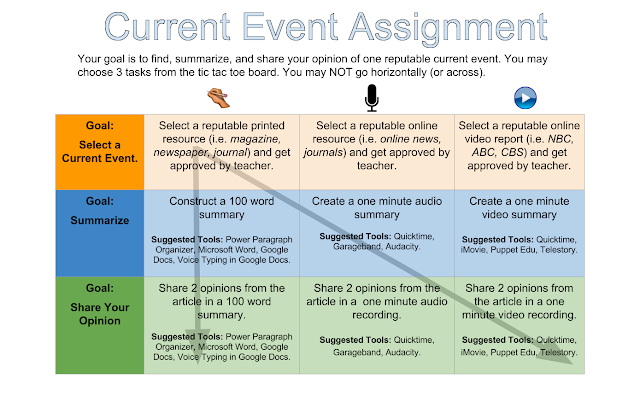

Here are 5 tips for creating your own assignment Tic Tac Toe board:


1. State Your Goals 

If you notice, because humans are naturally goal-oriented, I provided the goal for each section. We need to understand "why" we are doing something; therefore, I stated it in clear terms (i.e. find a current event, summarize, share your opinion).


2. Clear Goals, Require Clear Assessments

Although it is important to share your goals, it is also important to have a rubric communicating specific behaviors and actions. Students should have access to your rubric. Avoid Likert scales 1 - 5 without any description of the behaviors!


3. Structured Options

Too many options creates the burden of choice. I have learned to provide students with a few structured choices. My Tic Tac Toe board provides students with the ability to construct (hand written or typed) or create (with audio or video).  In my experience, if students have too many options, they will sit there and do nothing.


4. Scaffolds and Supports

In any assignment, there are always high-probability barriers. It may be helpful to provide scaffolds, supports, and examples of what you are talking about. In the Tic Tac Toe board, I provided several different scaffolds and supports. For example, I suggested approximately 2 -3 tools they should consider when doing the project, such as Google Docs, QuickTime, etc.


I also placed arrows on the Tic Tac Toe board as examples of what diagonal or vertical mean. Why? This can be a difficult concept for some students.


5. Create an Electronic Version

If your students have access to technology, I would create an electronic version of your Tic Tac Toe board. Why? It provides students with visual difficulties with the opportunity to zoom in and out. Students can print out copies if they lost the copy you handed out. Hyperlinks provide an interactive component to take students to various resources.


Conclusion:

Have you created your own Tic Tac Toe board? I would love to hear about it! Please share a comment below.

Help Create Student Engagement with ClassKick

Student engagement is a highly debated issue in education today. Brain research has revealed that we can engage students through recruiting interest, sustaining effort and persistence, and helping develop self-regulation skills (CAST, 2017).

Providing timely feedback is one way to create engagement and help sustain student effort and persistence. ClassKick is an excellent tool to provide students with engaging assignment, monitor progress, and provide timely feedback. ClassKick is free and is available for students to use on an iPad, Chromebook, laptop, or desktop.

Features

There is a paid version of ClassKick; however, the free version offers many great tools and resources for both teachers and students in the classroom.

  • View "live" student work and write real-time feedback. You can watch your students as they progress through a lesson without any expensive monitoring software. 
  • Share content through text, written instructions, audio recordings, text, links, and images. 
  • Students can "raise their hand" if they have any questions. Teachers can see who has a question and offer timely help. 
  • Real-time feedback is enhanced with the ability to add teacher comments, pre-made feedback stickers, annotate student's work, and grade assignments. 
  • You can enable student helpers, who provide feedback to other students. 

Want to know more? Check out the ClassKick in 1 Minute video below:


How do I get started?

First, visit the ClassKick website or open the App to to create a free account. 


Next, you will want to create your first assignment. Add content in the form of text, audio, images, and recordings. 


Finally, open your assignment and share with your students by using the ClassKick App and entering your class code. 


A Google A Day Keeps Students Engaged

You might have heard the expression, "an apple a day, keeps the doctor away," but a Google a day can keep students engaged!

What is A Google A Day?

A Google A Day is a free site aimed at sharpening your students ability to search and find answers through a game-like format. I love the site's motto, "there's no right way to solve it, but there's only one right answer." It is very simple. Each day, you are asked three different questions and you have to find the answer by any means possible.

The quicker you find your answer, the more points you earn. Need help? A Google A Day can provide you with hints, such as key words and the first letters of the term.


How it Can Benefit Students?

Problem solving has become an essential skill for students (and teachers) in the era of grit, the growth mindset, and STEM. We are constantly looking for ways to challenge our students, grow their abilities, and sharpen their skill sets. Google introduced us to "moonshot thinking" and to look at problems through unique perspectives. How about trying A Google A Day? This challenge provides every student with a chance to problem solve and shine.

Since A Google A Day asks you the same set of questions per day, why not use it to challenge your class as a bell ringer activity? The last five minutes of class are often the most unproductive minutes of class. Why not challenge your students until the ending moments of class?


Google Image Quiz: An Engaging Way to Teach Search

Teaching students how to search for information is a valuable skill in the 21st Century. I'm amazed at how many students do not know how to search effectively. Instead of using keywords, they type full questions (punctuation and all).  The Google Image Quiz is a valuable resource, which takes the form of a game aimed at helping students learn the power of queries. This resource is designed by Silvio Lorusso.

How does it work? 

After visiting the website, you will see a random image appear on your screen. Below the image, you are asked to guess the keyword or query used to find the image in Google. 

Not sure where to start? Google Image Quiz gives you with several hints. First, each box represents a letter in the query. 

Need a little more help? Click on the Hint button to reveal one letter at a time. 

Want to start over? Click on the Show New Image button for a new image to search for. 

Why is Searching Important?

Information is a valuable commodity in our world today, but finding information is even more valuable. Think about all of the time students waste because they don't know the language of searching. How can we teach our students the language needed for mastery and efficiency? Many of us turn to librarians, computer teachers, or media specialists to teach an annual lesson on Google searching. No doubt this is valuable; however, in order for something to become a skill, it has to be practiced. Google Image Quiz provides teachers with an engaging activity, which teaches students valuable skills. 

Are you aware of any other cool search games like Google Image Quiz? I'd love to hear about it and feature it on my blog! 

New Learn Lead Grow Home!

Hello readers! Happy New Year! It’s hard to believe that 15 years have passed since I launched my Learn Lead Grow blog. As we step into a n...